Back to Support

How to Import Your Products and Use Product Catalog

Learn how to use Lapis' Product Catalog to import the products on your website and create professional ads with them.

Created by: Sofia

Import Your Product Catalog
Tip
This is a guide on how to use Lapis' Product Catalog, which allows you to import the products on your website to create ads.
1
Start by logging into your Lapis Dashboard, which you can find at https://www.trylapis.com/dashboard/
Log into Lapis Dashboard
2
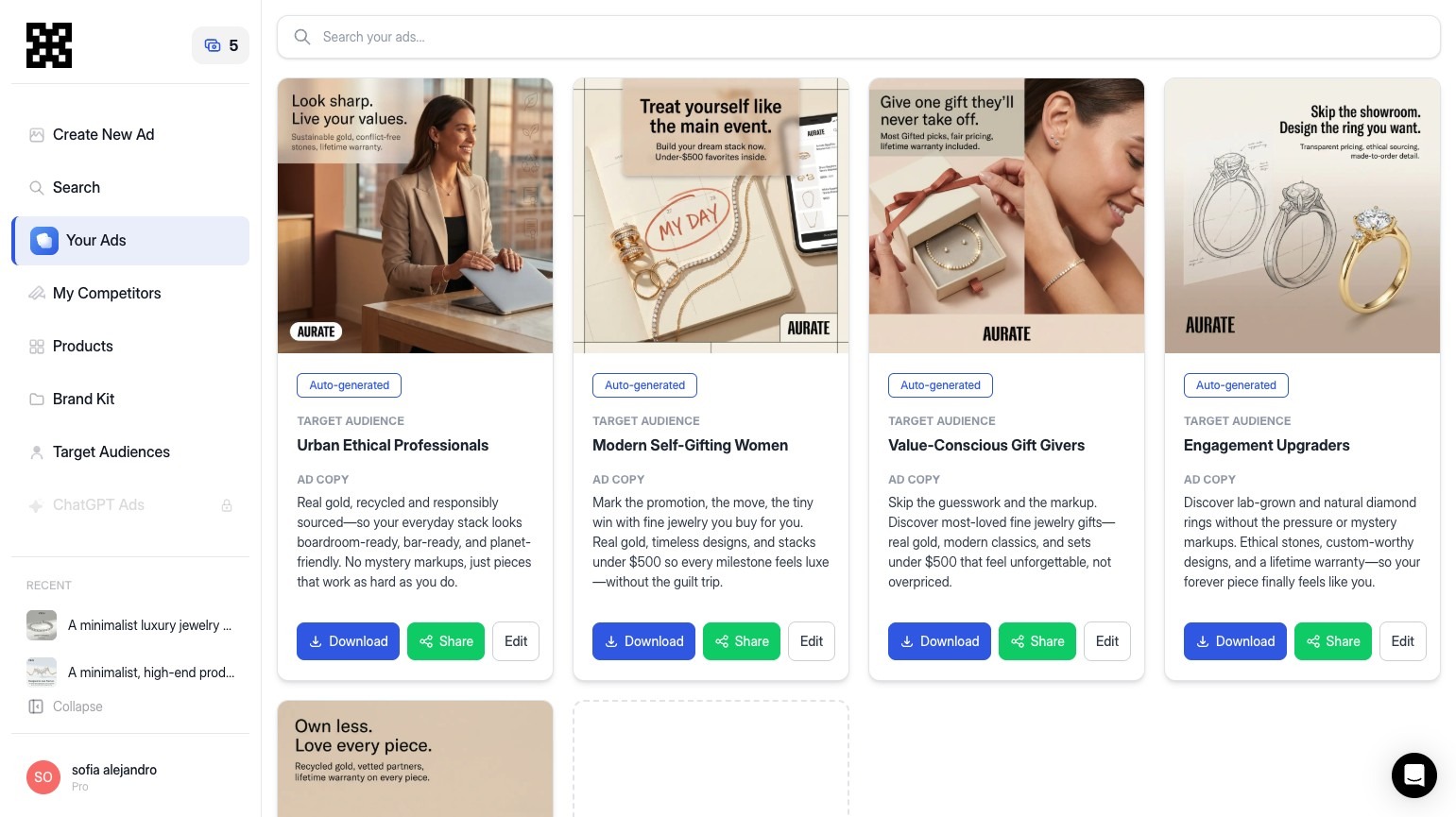
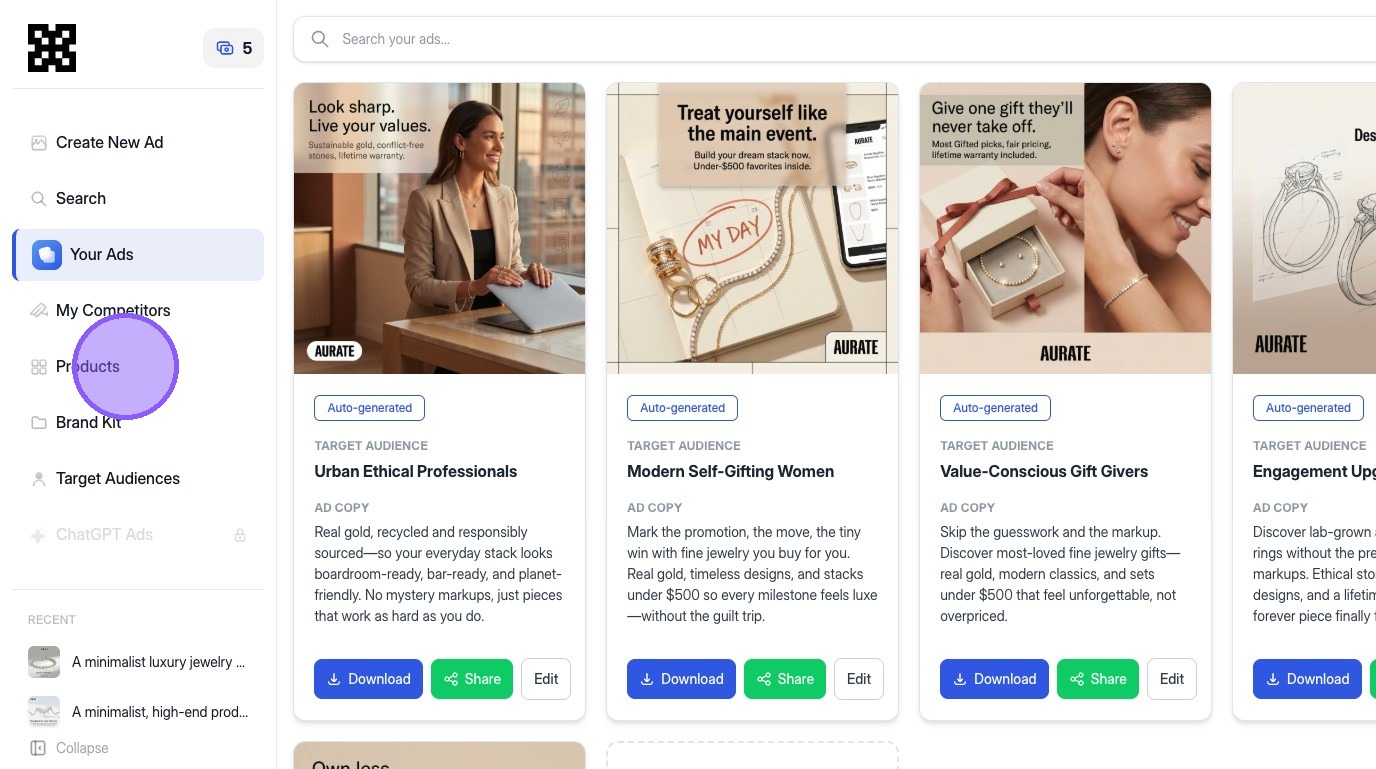
Click "Products"
Click Products
3
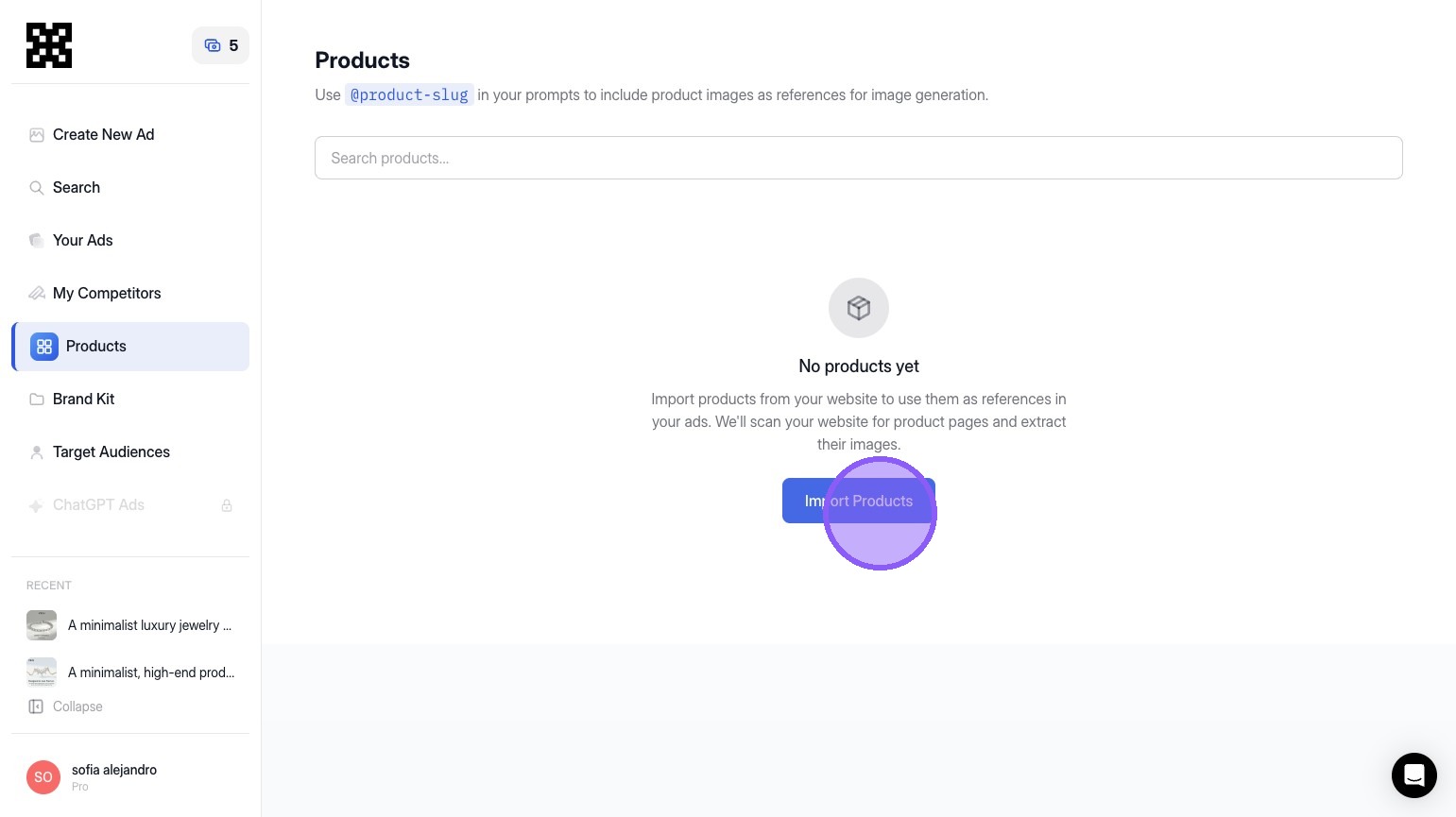
Click "Import Products"
Click Import Products
Tip
Depending on how many products you have on your website, once you click "Import Products", this process will typically take about 2-3 minutes.

While the import runs, decide what you want this ad to optimize for: product-forward visuals, promotional messaging, or brand storytelling. Knowing this ahead of time helps you prompt more precisely in the next steps.
4
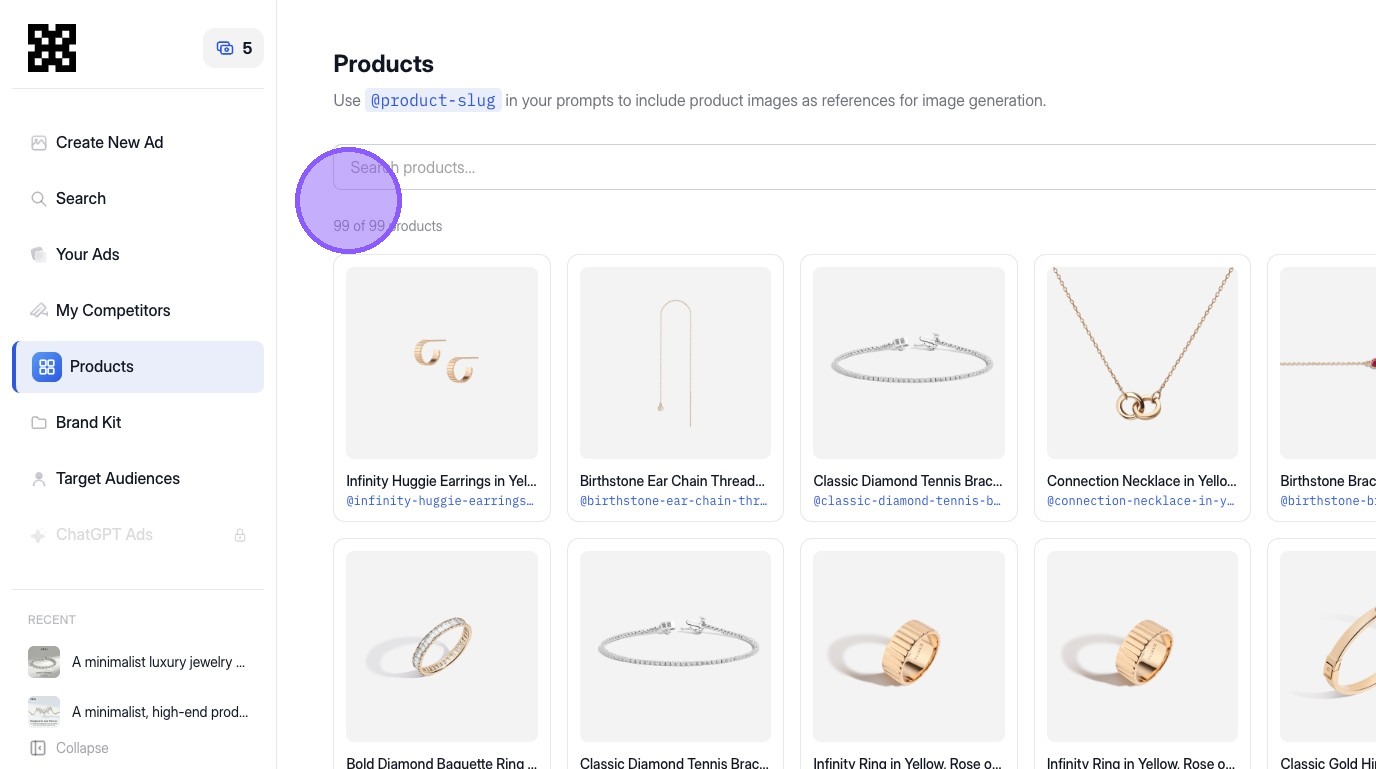
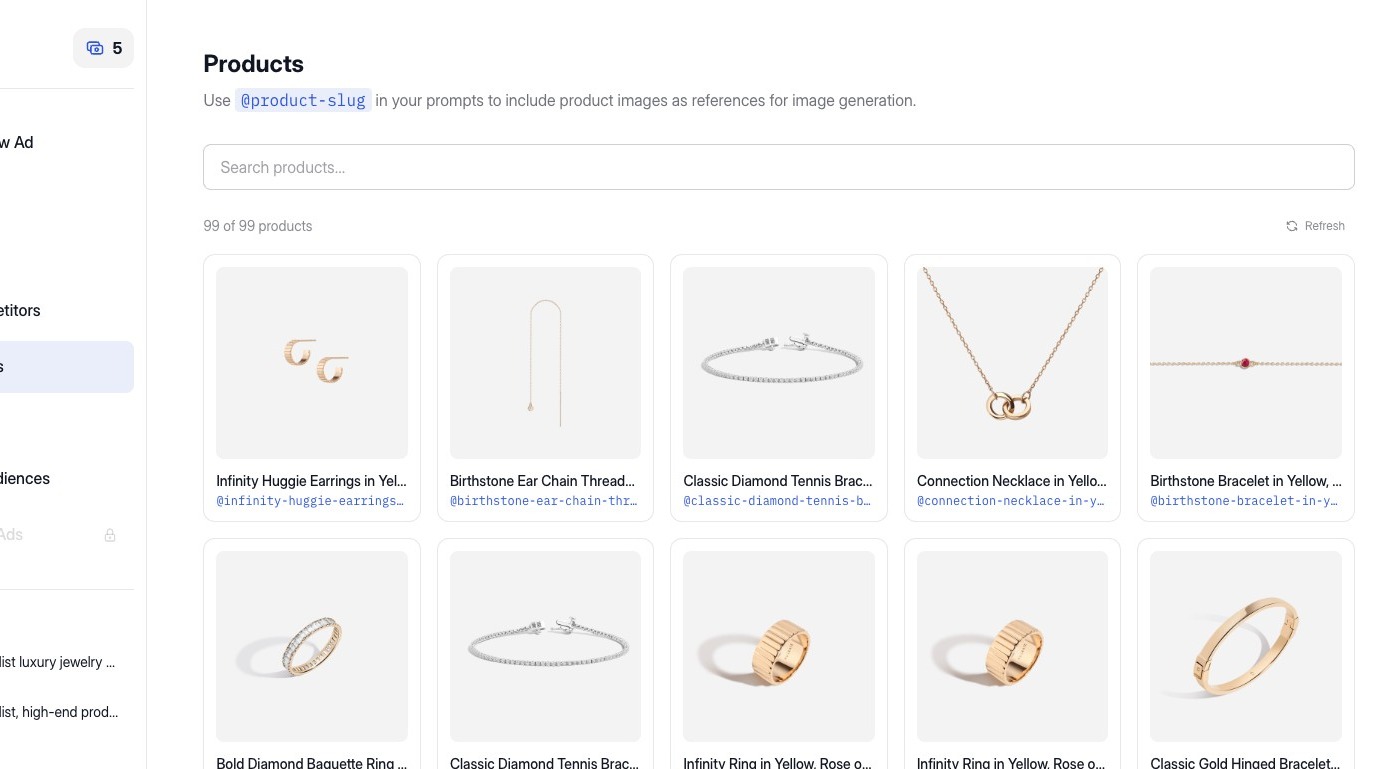
Refresh the catalog to confirm that all products have been successfully imported.
Refresh the catalog
Tip
If your catalog does not appear immediately, refresh to ensure the import process has completed. Right now, we can only support 99 products from your catalog. If you need more than this, reach out to support@trylapis.com or start a chat with us using the Intercom module in the lower right hand of the screen of your dashboard.

Select a Product for Your Ad

5
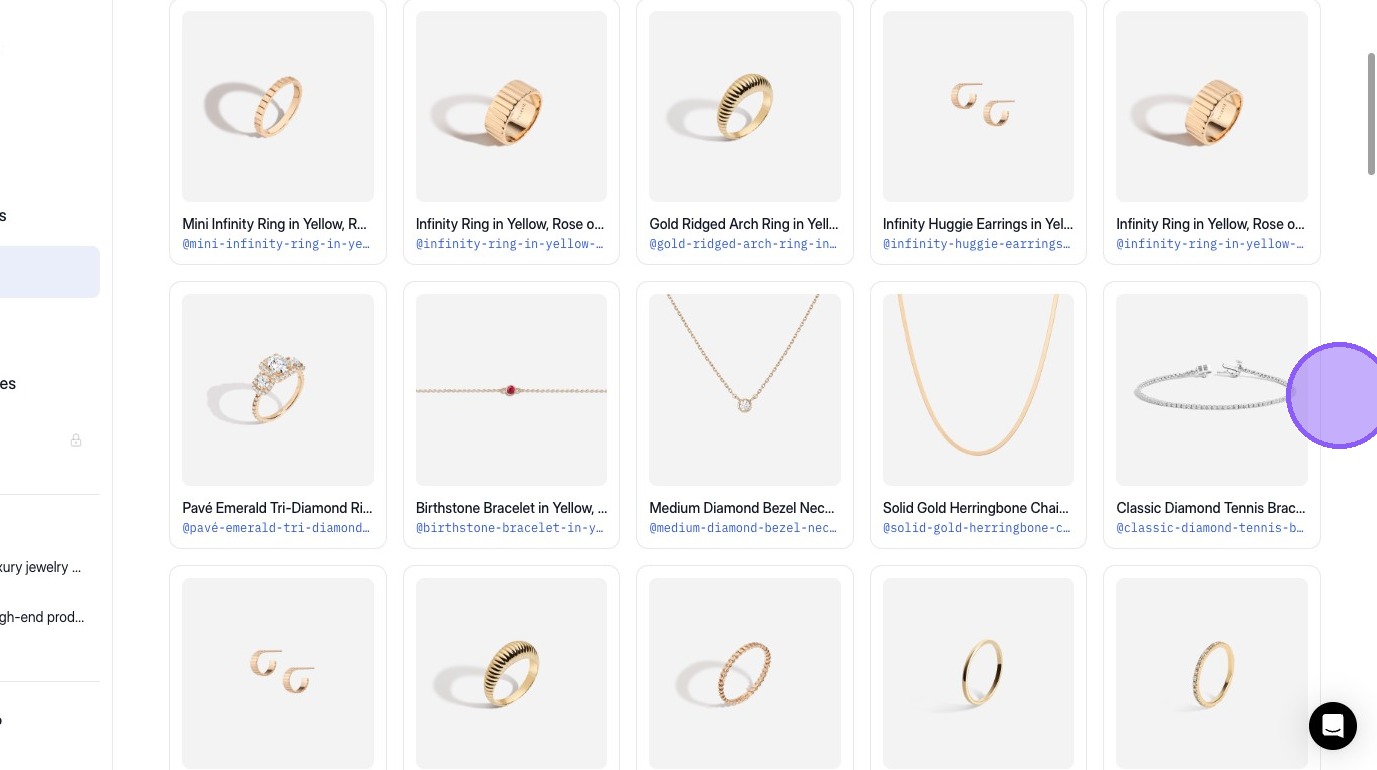
Lapis uses the @product-slug to anchor the product image and metadata inside generated ads.
Product slug in catalog
6
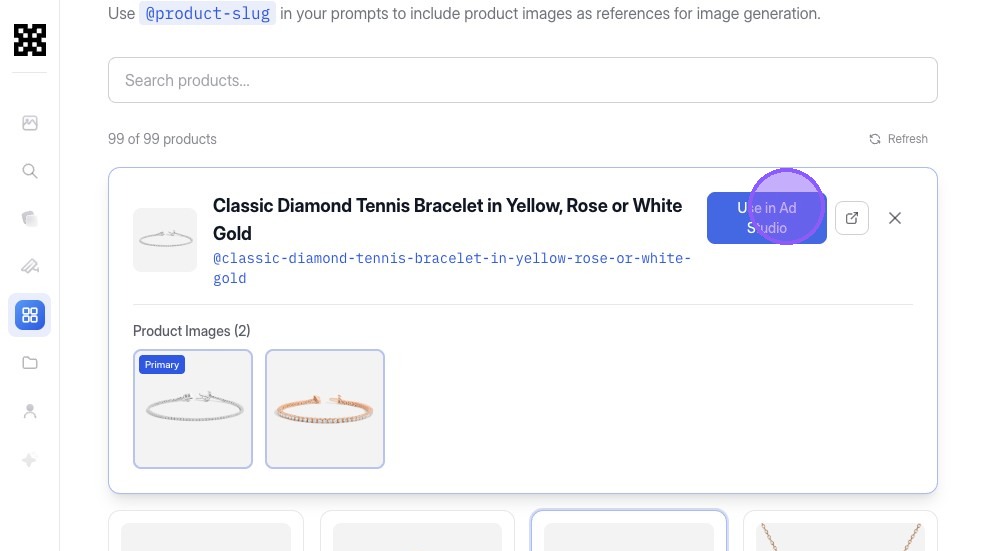
Now that we've identified a product that we want to use in an ad, click the product and navigate to the top of the product catalog.
Click on a product
7
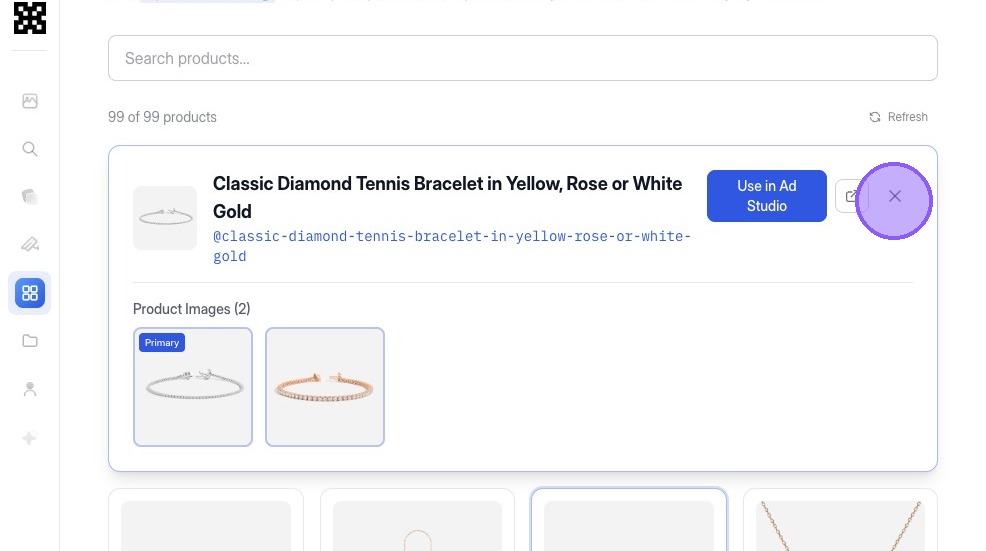
Ensure that this is the product that you want to use. If it's not, you can click on another product or press the X button to replace it.
Confirm product selection
8
Click "Use in Ad Studio"
Click Use in Ad Studio
Tip
If you plan to test multiple product variants (gold vs silver), try generating one baseline version first before switching SKUs.

Create Your Ad in Ad Studio

9
Now that we're back in Ad Studio with the product slug, click the text box to start generating ads using natural language.

For this product specifically, we'll type in "Create me a minimalistic ad that uses this bracelet as the focal point of the ad."
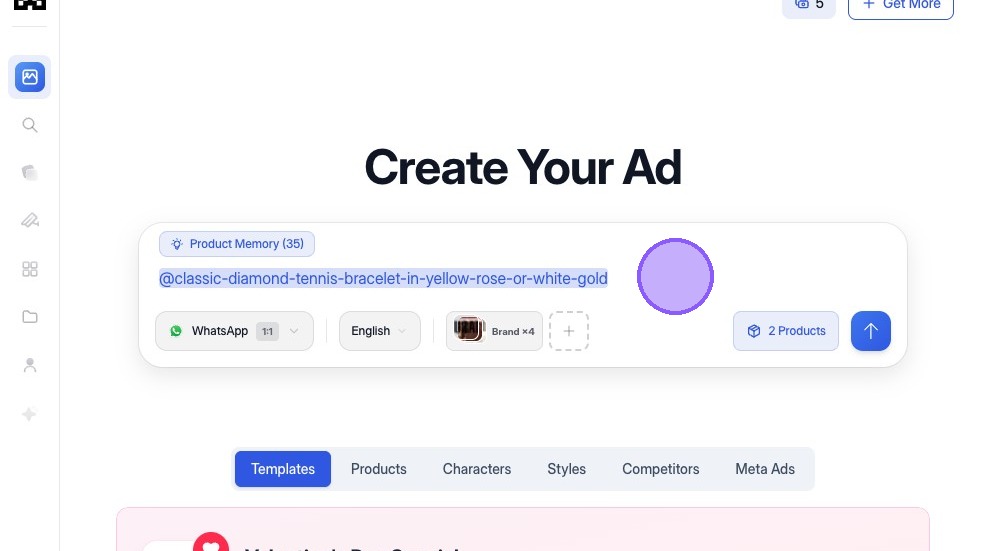
Type ad prompt in Ad Studio
Tip
Unlike traditional design tools, Lapis lets you edit ads using plain language instructions. For example:
  • "Make the headline more direct"
  • "Generate 5 variants that use more empty space"
  • "Change this to feel more premium"
  • "Emphasize speed and ease of use"

Lapis interprets these instructions and updates the ad accordingly, removing the need for manual design or copywriting work.

This makes designing ads fast and accessible, even for non-designers.
10
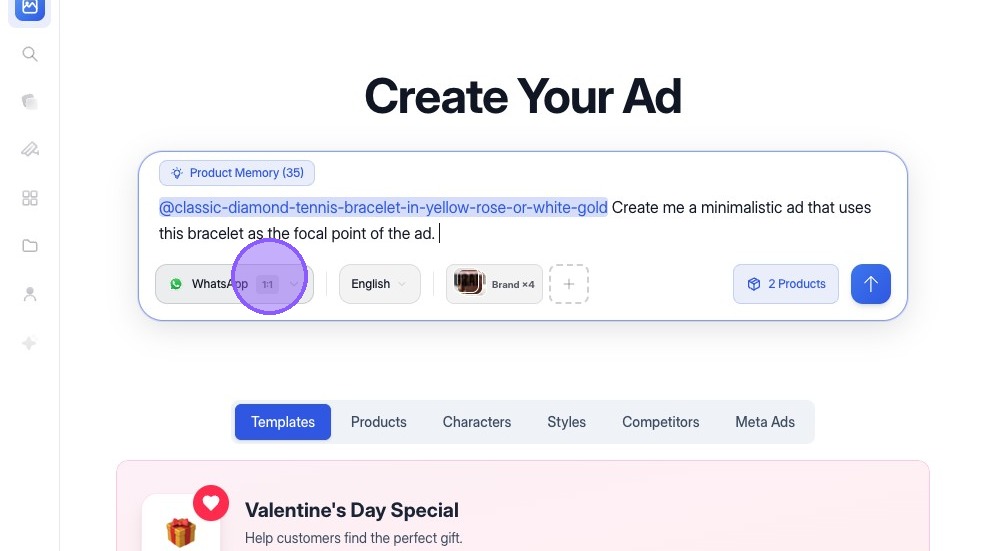
Now that we've specified the product slug and the type of ad we want to generate with Lapis, we can refine the size further. From here, you can click on the WhatsApp button that also includes aspect ratio to change our settings.
Click platform and aspect ratio button
11
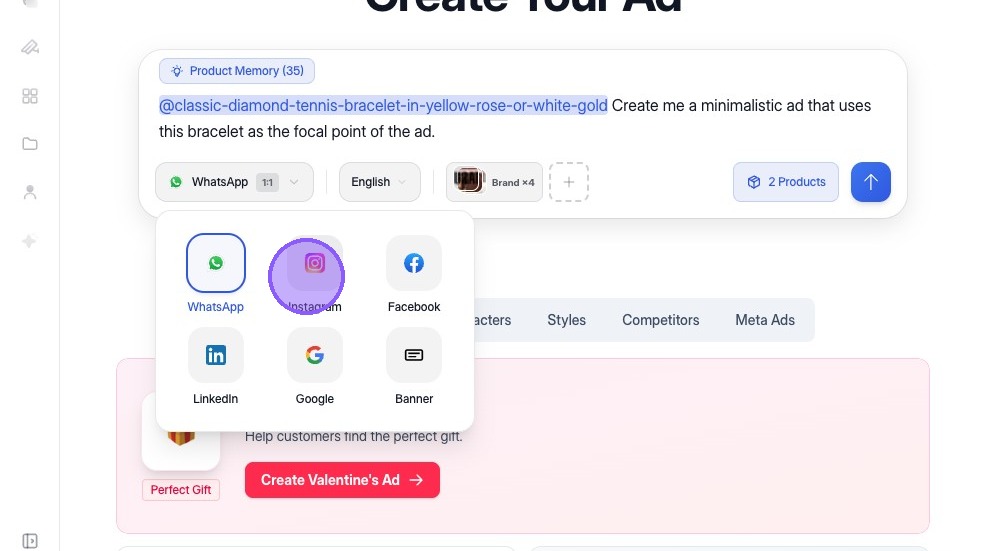
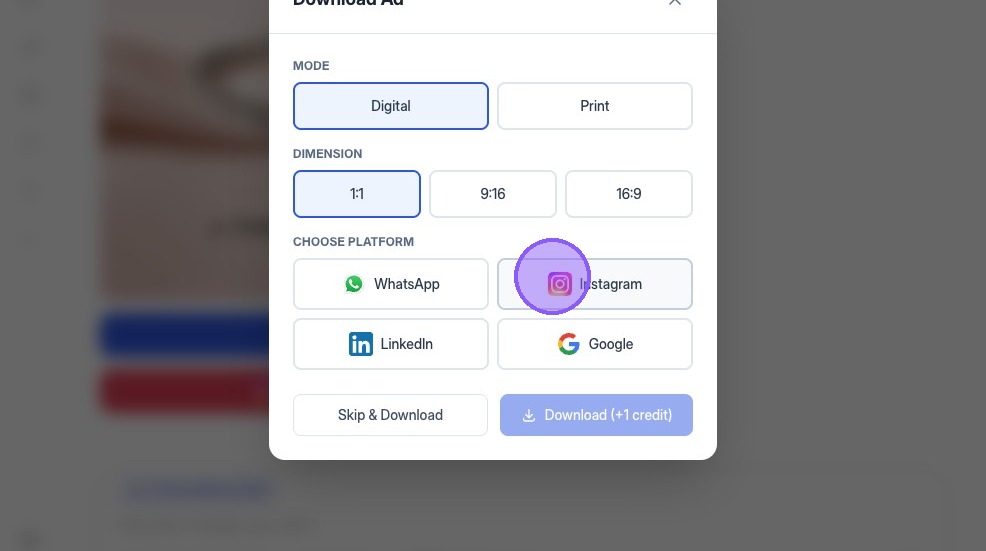
Select the social media network that you want to post to. We currently support WhatsApp, Instagram, Facebook, LinkedIn, and Google.
Select social media network
12
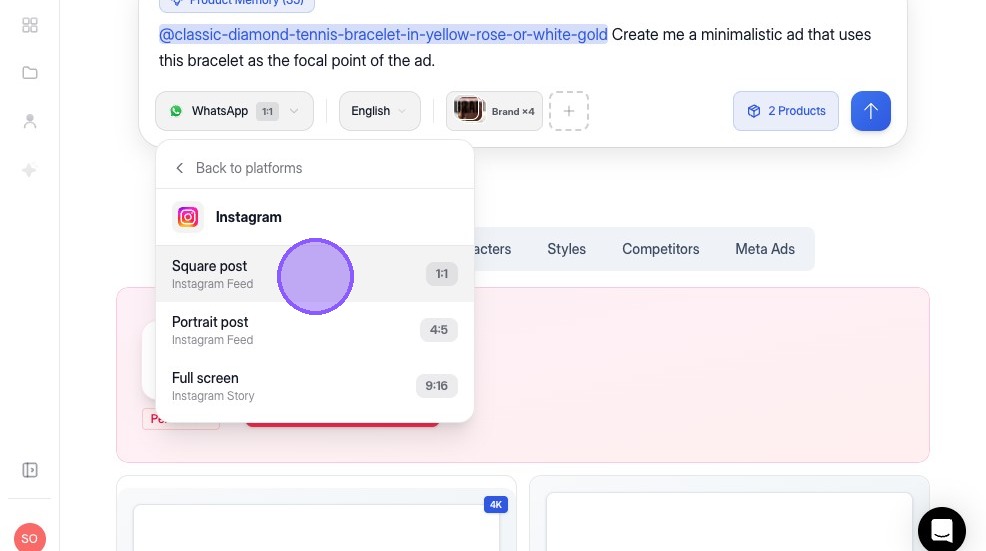
Since we want to export it to Instagram and post it to our feed, we'll select the 1:1 aspect ratio, also known as a "Square post".
Select aspect ratio
Alert
Be careful to not remove the product slug here, otherwise, you'll need to route back to the Products page to add it again!
13
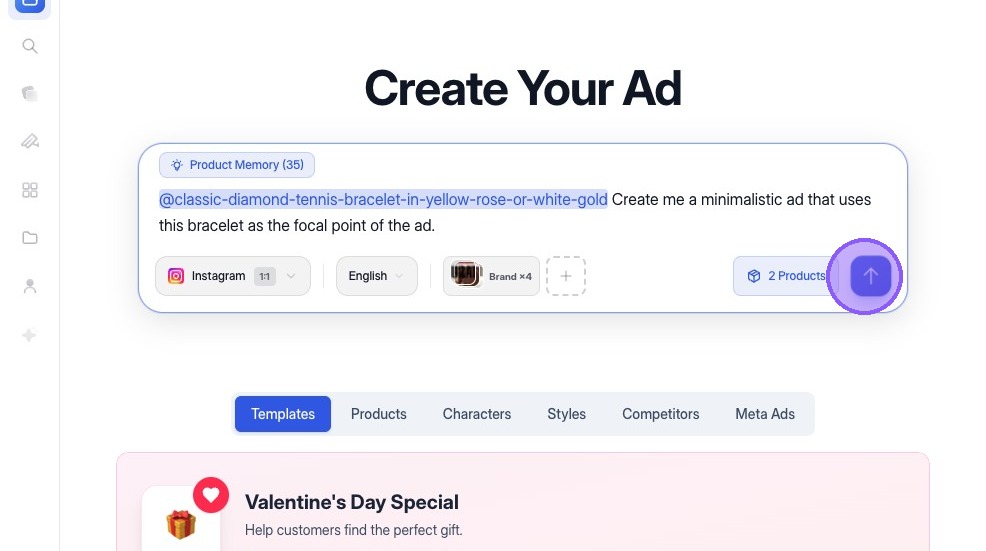
Double check that you have the right product slug, text, and size in the Ad Creator. If everything looks good, click the arrow button to start the generation process.
Start ad generation
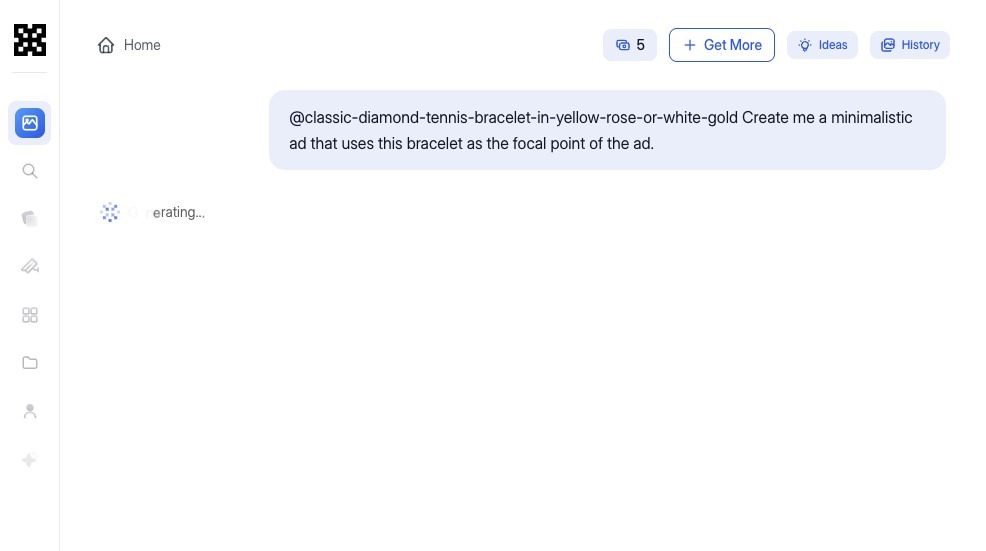
14
Lapis is now generating the creative based on your prompt and selected product reference. This process will take about a minute!
Ad generation in progress

Refine Your Ad

15
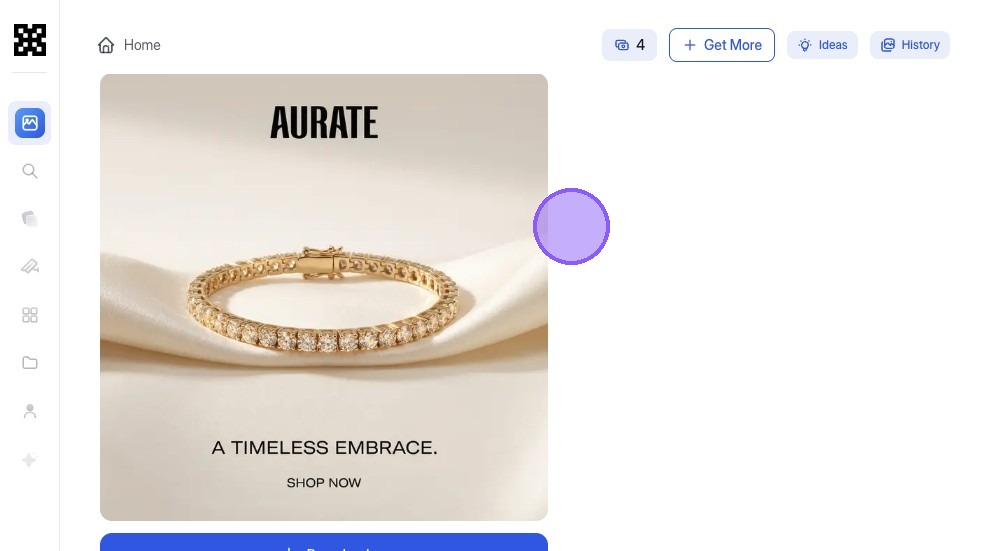
We have generated an ad! But it's not quite what we wanted.
Initial generated ad
Tip
Now that we have our first output, think about what elements should change. Being precise in your requests helps (for example: "lighter background" or "larger product image").
16
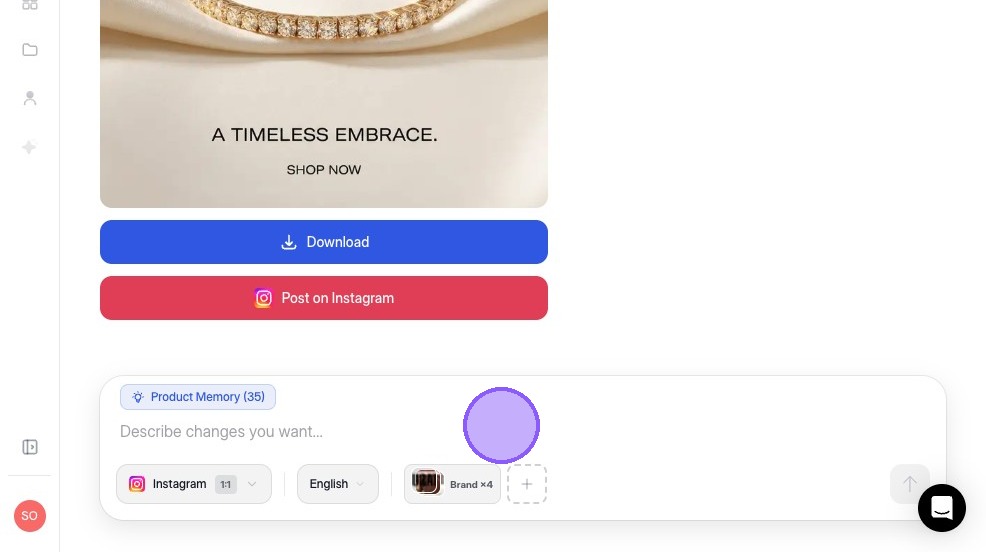
Let's navigate down to the chat window and click the "Describe changes you want..." field.
Click chat window
17
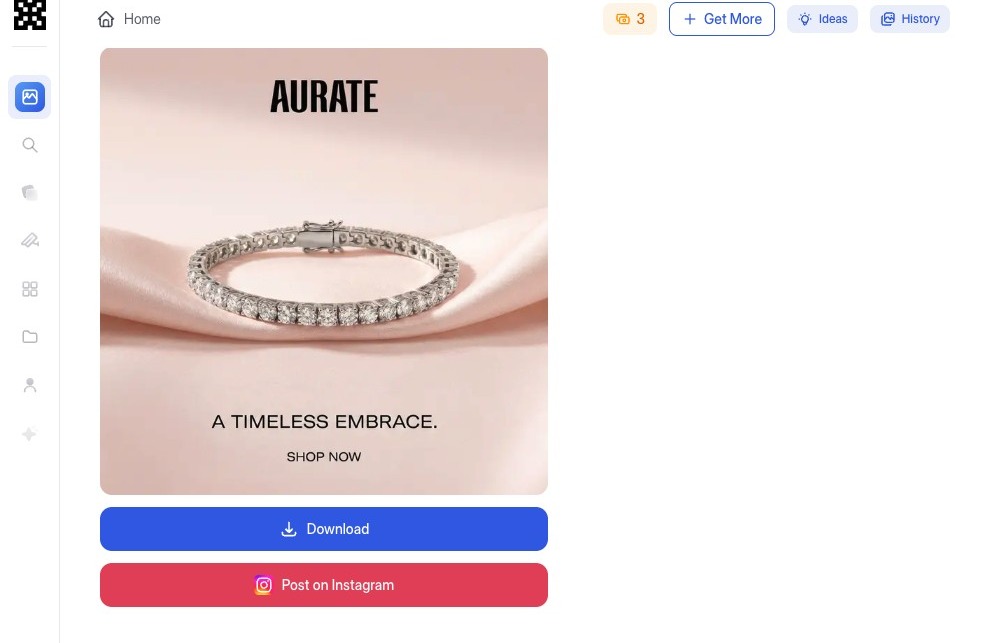
This ad looks strong, but the product and background can be refined. Using the text box, we can refine the creative to use the white gold version of the bracelet and switch the background to a light pink tone to better match the desired aesthetic.

"Let's use the white gold version of the bracelet and let's do a light pink background instead."
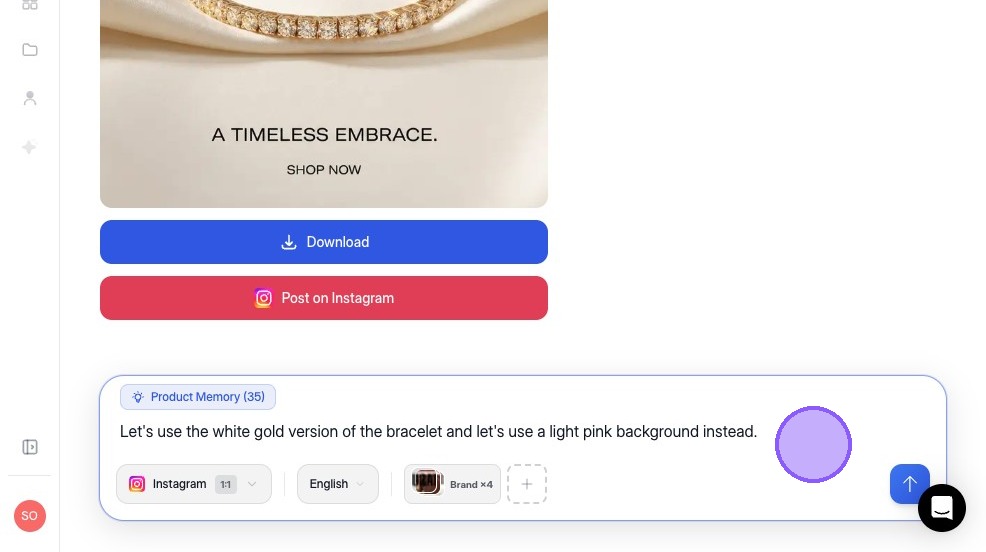
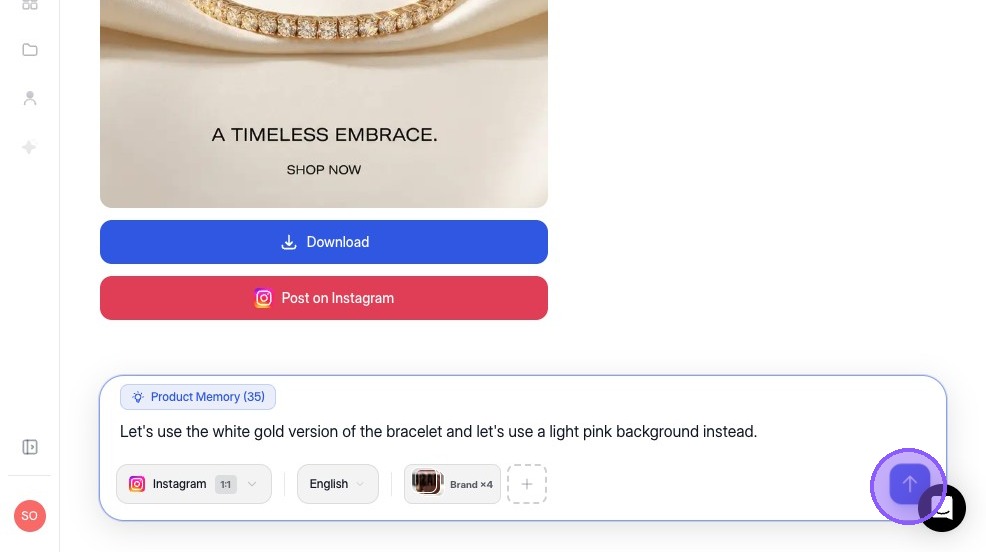
Refine ad with text prompt
18
When you're done with your edits, you can press the arrow key to start generating a new variant.
Generate new variant
Tip
Adding "Give me 3 variants" allows you to compare multiple refined outputs quickly.

Download Your Ad

19
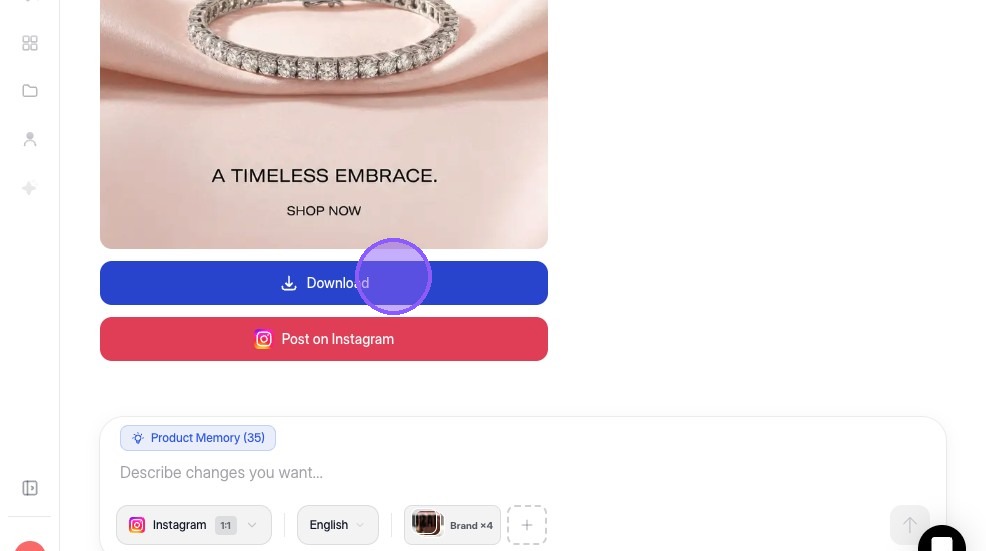
We've generated an ad that we're satisfied with. Let's go ahead and download it.
Satisfied with generated ad
20
Click "Download"
Click Download
Tip
Before downloading, quickly confirm headline readability and image placement.
21
Once you are satisfied with the creative, you can select the specific variant that you want to export.
Select variant to export
22
Click "Download" to save the image to your device!

If you're still not satisfied, you can keep refining the ad by using the text box and downloading it once you get to a state that you're comfortable with.
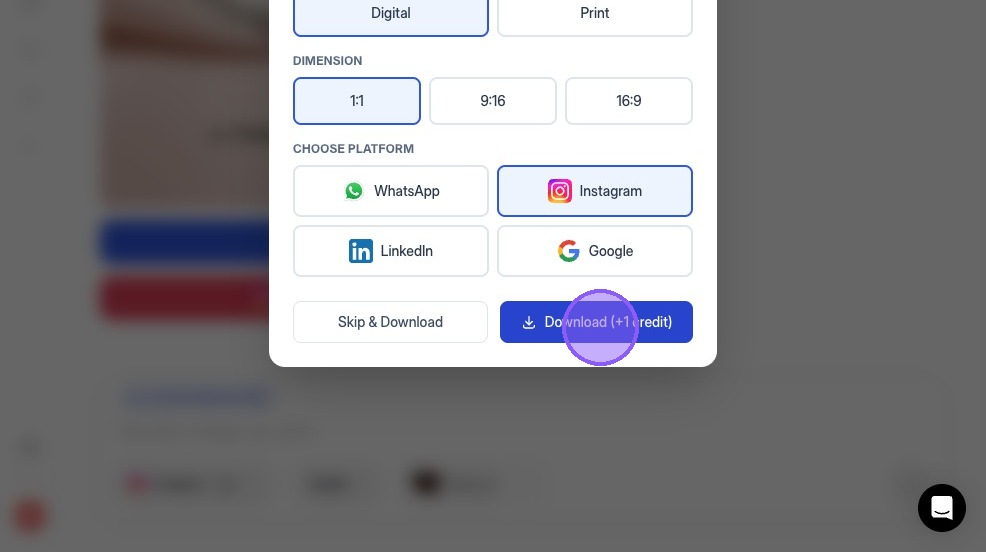

Download the final ad
Tip
This is your ready to use output for uploading into ad managers, sharing with stakeholders, or adding to a creative library. Before downloading, confirm you're downloading the right variant.

Try Lapis free.

Create designer quality, on-brand ads using AI.

Start for free