Back to Support

Create and Edit Ads on Lapis

Learn how to create professional ad campaigns using Lapis AI. This guide covers everything from signing up to downloading your finished ads.

Created by: Sofia

Log In to the Lapis Platform

Tip
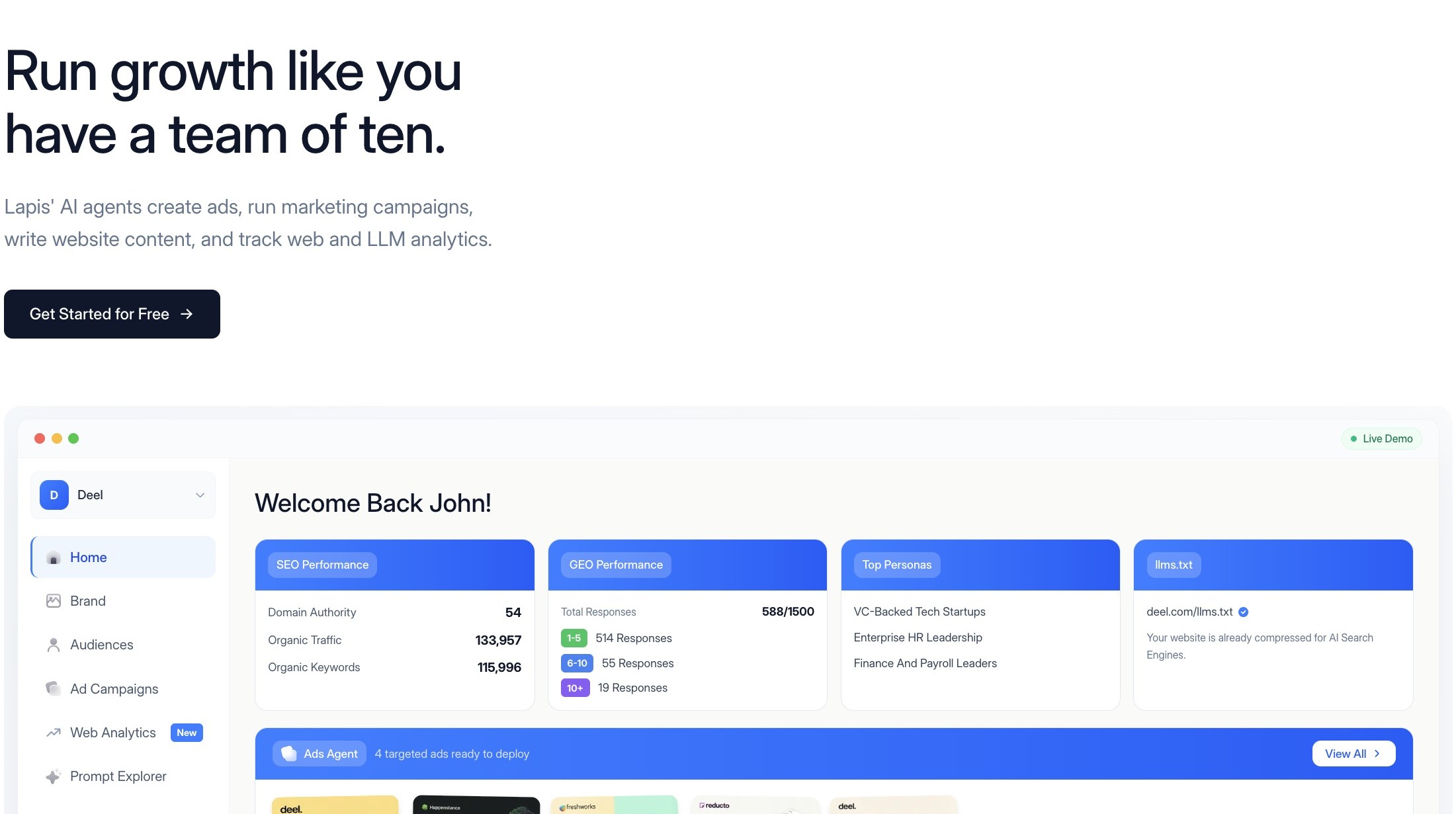
Begin by logging into your Lapis account. Once authenticated, you'll be taken to the main dashboard, which serves as the control center for all ad creation, editing, and management activities.
  • Create new ads
  • Review previously generated creatives
  • Manage company profiles and brand settings
  • Iterate on existing campaigns

If this is your first time logging in, the dashboard will populate with ads we've generated for you. This is expected until you generate your first ads.
2
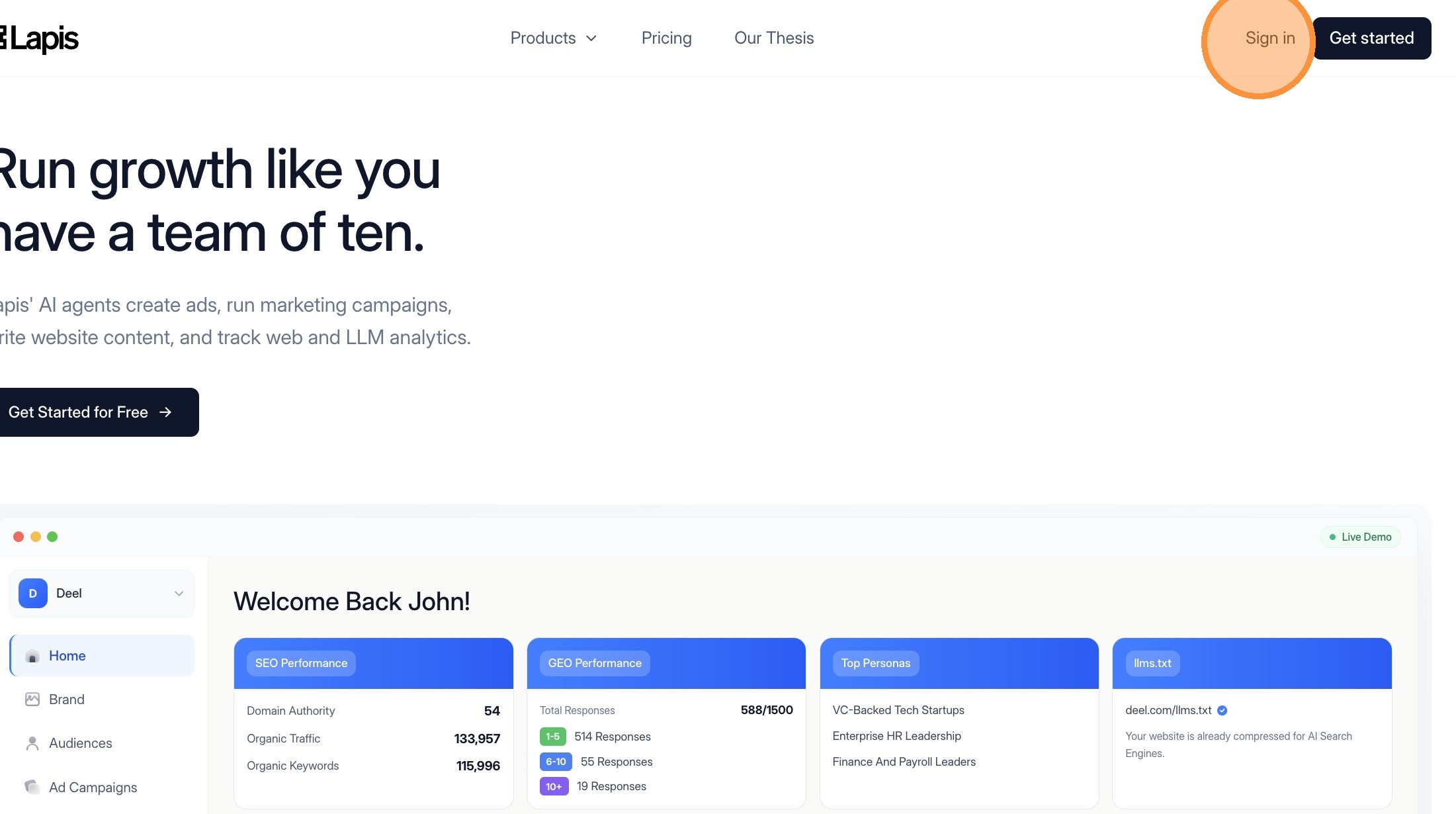
Click "Sign in"
Click Sign in button
3
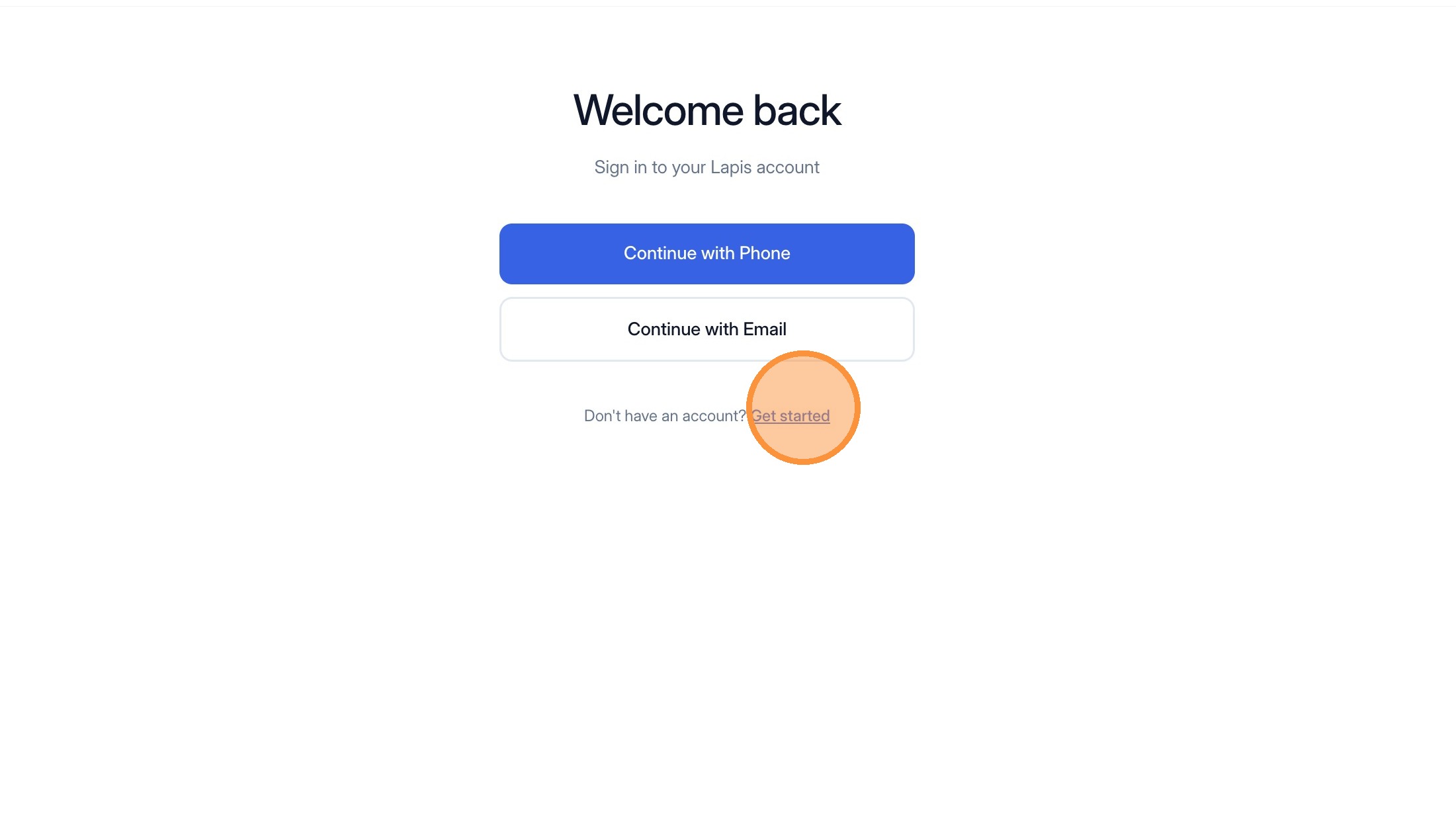
Click "Get started"
Click Get started button
4
Type in your email and press Enter
5
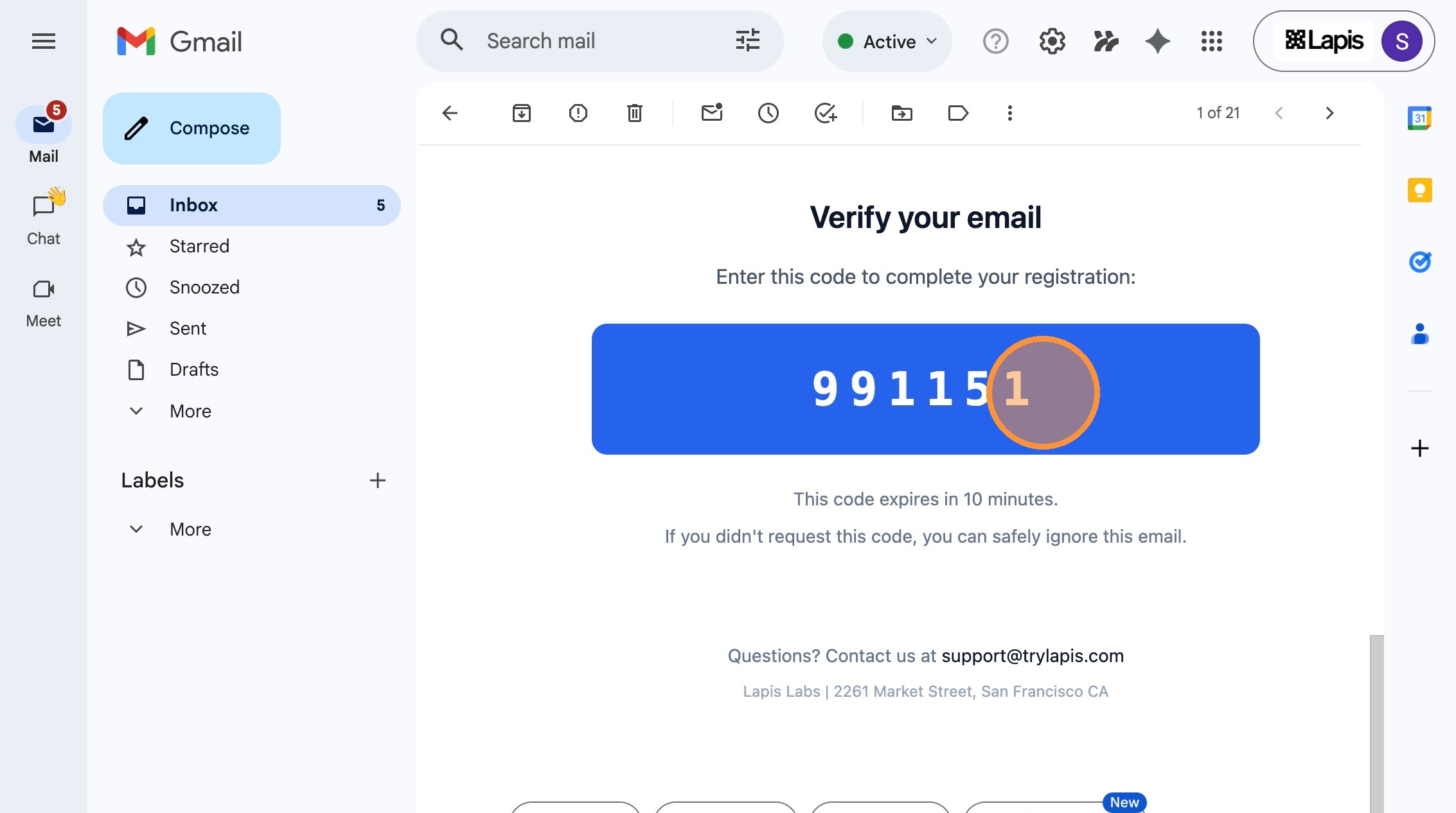
Navigate to your email to find the verification code we sent you.
Check your email for verification code
6
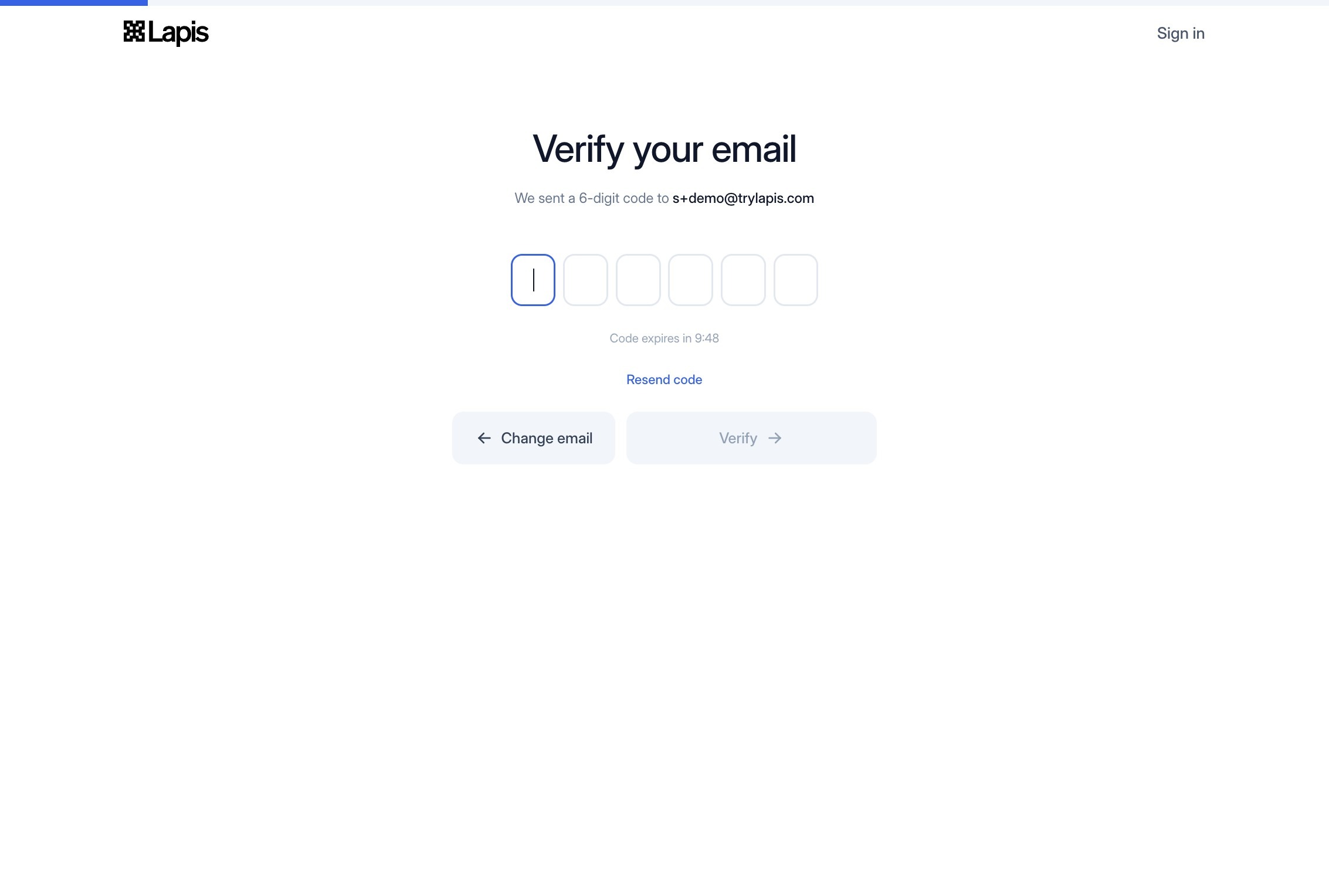
Type in the verification code we sent you and click on "verify" to proceed.
Enter verification code
7
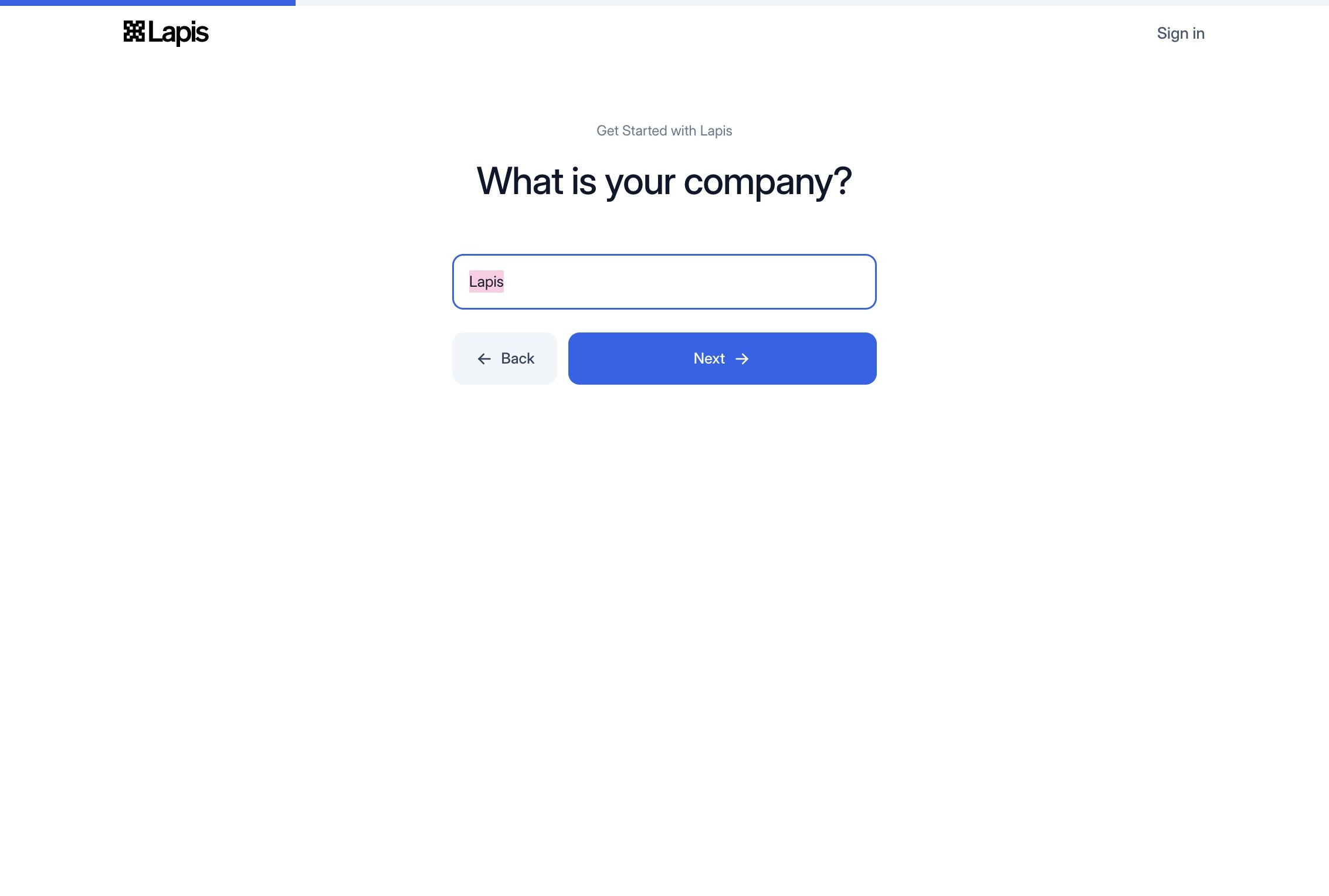
Type in your company name and click "next" to proceed.
Enter company name
Tip
Next, select the platforms where you want your ads to run. Our options are currently:
  • Meta (Facebook & Instagram)
  • Google
  • LinkedIn
  • TikTok

Each platform has different creative constraints, audience expectations, and performance dynamics. By selecting platforms here, you allow Lapis to:

  • Generate correctly sized creatives
  • Adjust copy length and tone for each platform
  • Optimize layouts for each ad network

You can select as many or as few platforms as you want. If you're not sure or are experimenting, we recommend you select the platforms that your customers will be on.
8
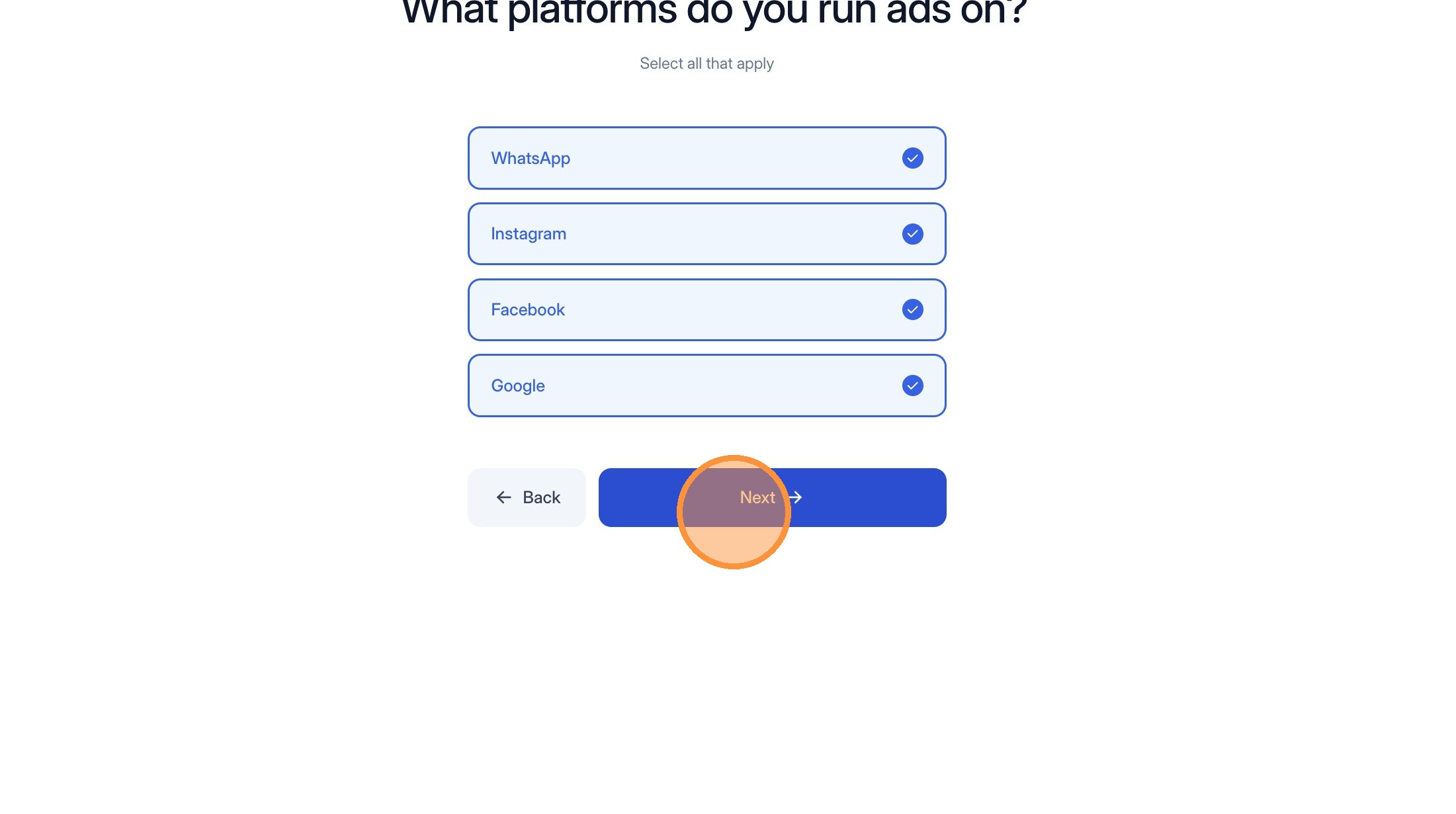
Select which platforms you will be running ads on and click "next".
Select ad platforms
9
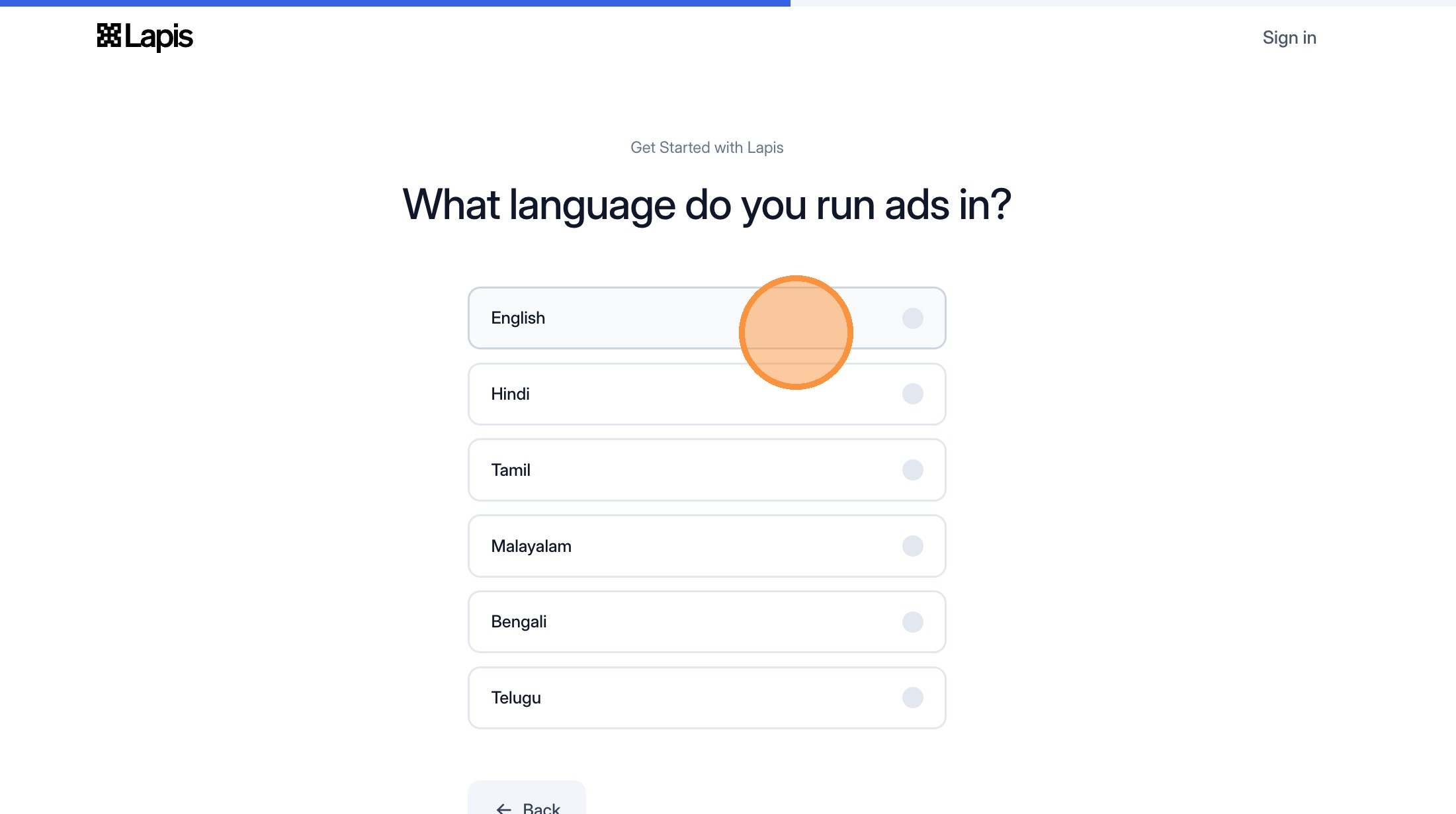
Select which languages you will be running ads in and then click next.
Select languages
Tip
If you plan to run ads in multiple languages, you can select one or more languages during setup. Lapis will generate ads in the languages you select while preserving:
  • Meaning and intent
  • Brand voice
  • Platform-specific best practices

This is especially useful for global campaigns or region-specific testing without needing separate creative workflows.
10
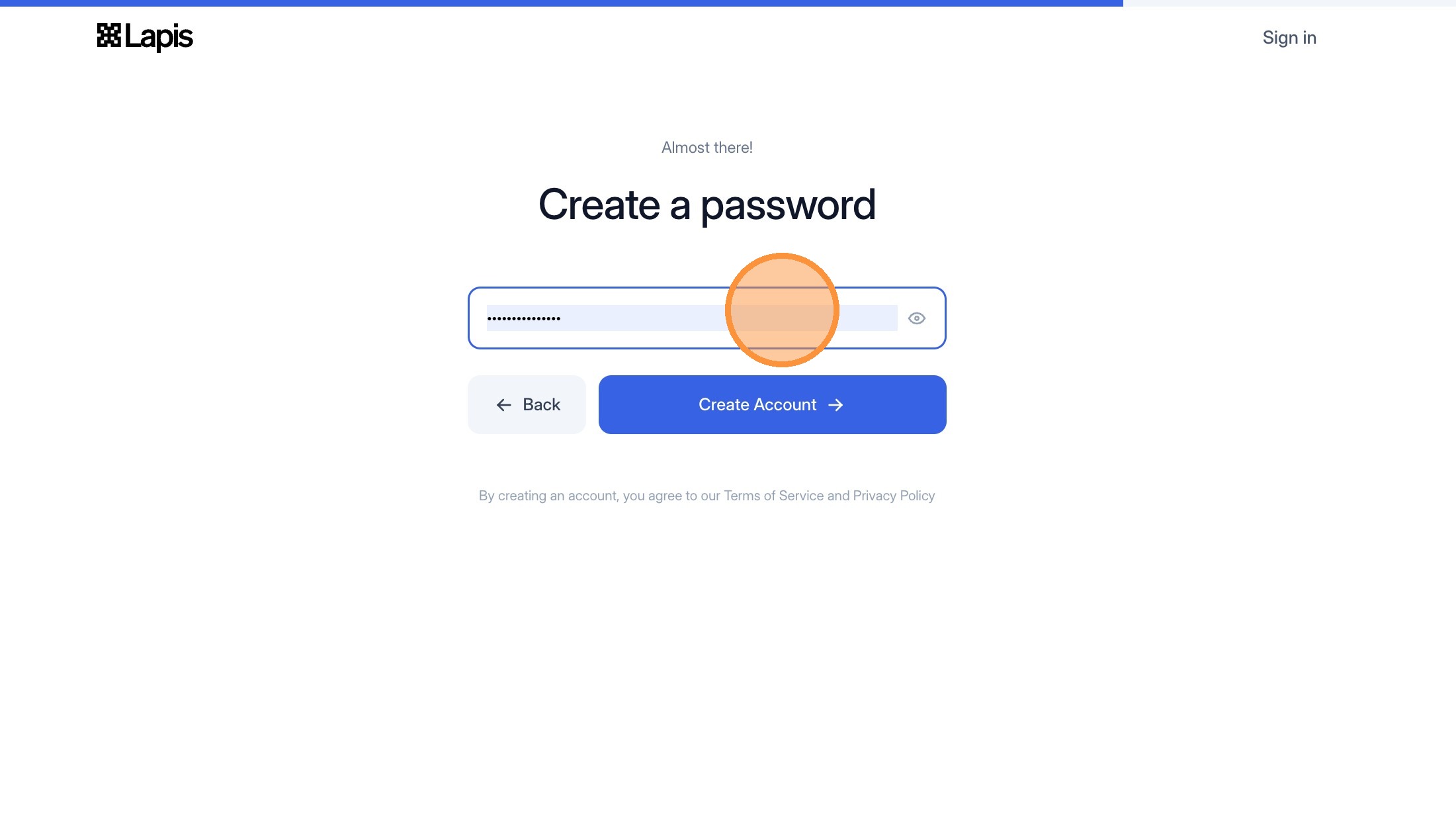
Click the "Create a password (min 6 characters)" field.
Create password field
11
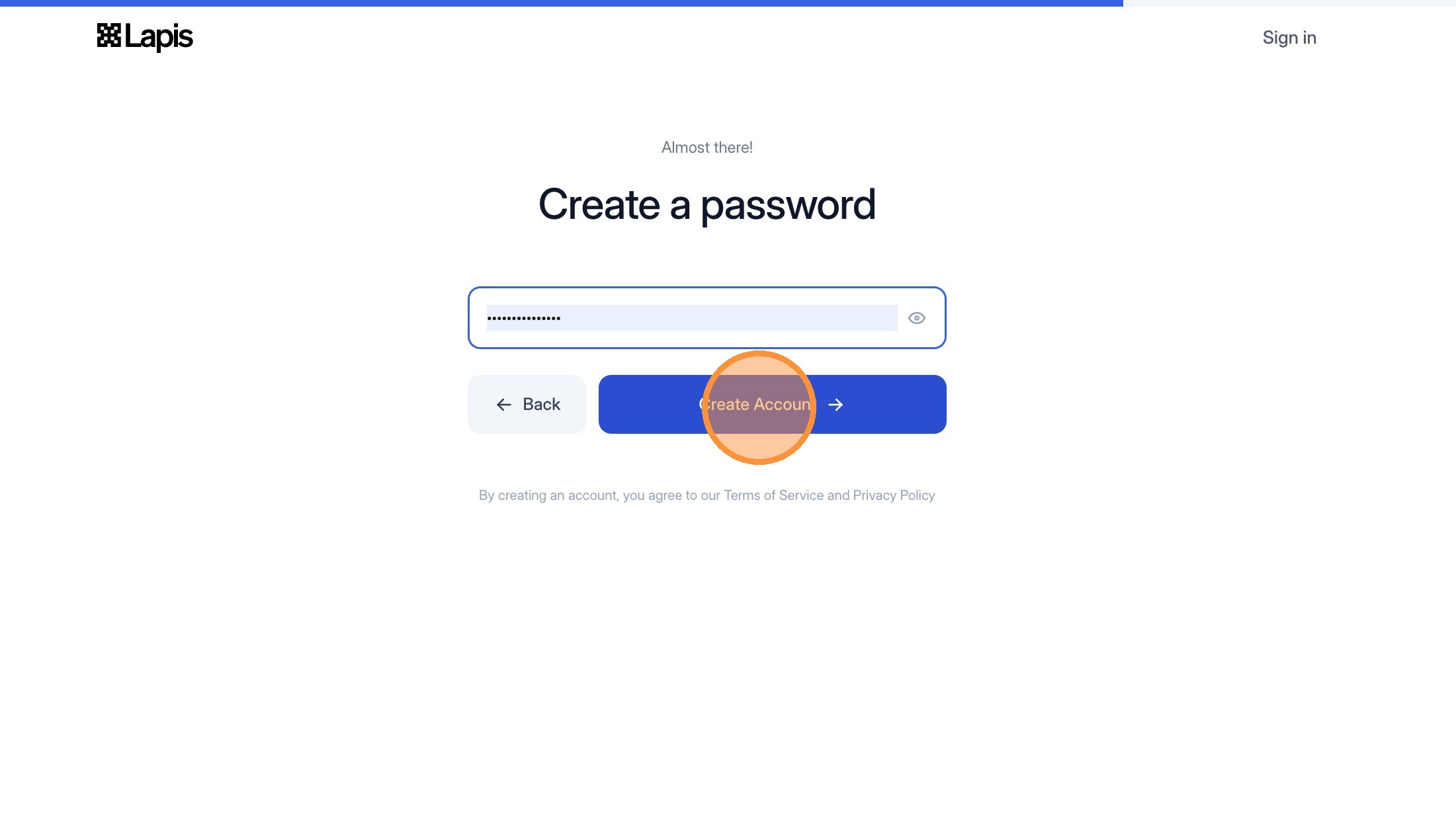
Click "Create Account"
Click Create Account
12
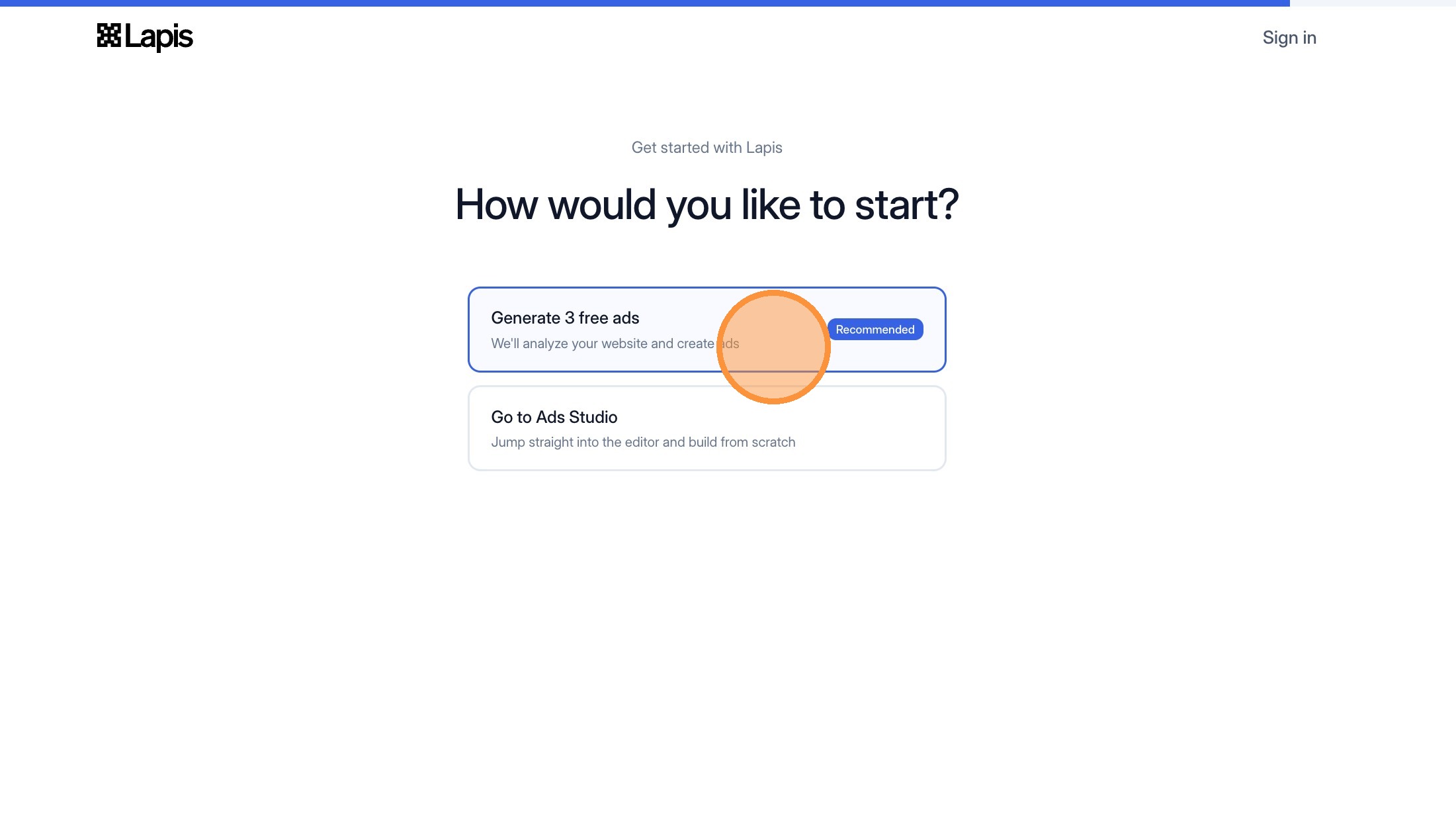
Click either "Generate 3 free ads" or "Go to Ads Studio" depending on if you want us to generate three free ads for you based off of your website. If you don't have a website or feel more comfortable building ads from scratch, click on Ads Studio!
Choose to generate ads or go to Ads Studio
Tip
Once your setup is complete, we recommend that you click Generate Ads. Based off of the images you've provided us or the screenshots taken from your website, we'll generate three free ads for you.

At this stage, Lapis analyzes:

  • Your website
  • Uploaded brand assets
  • Selected platforms and languages

We then produce a set of ads optimized for your chosen channels (Facebook/WhatsApp/Google/LinkedIn) you selected earlier. These ads typically include:

  • Visual creatives
  • Headlines
  • Primary text
  • Platform-specific formatting

This initial generation gives you a strong starting point for you to customize!
13
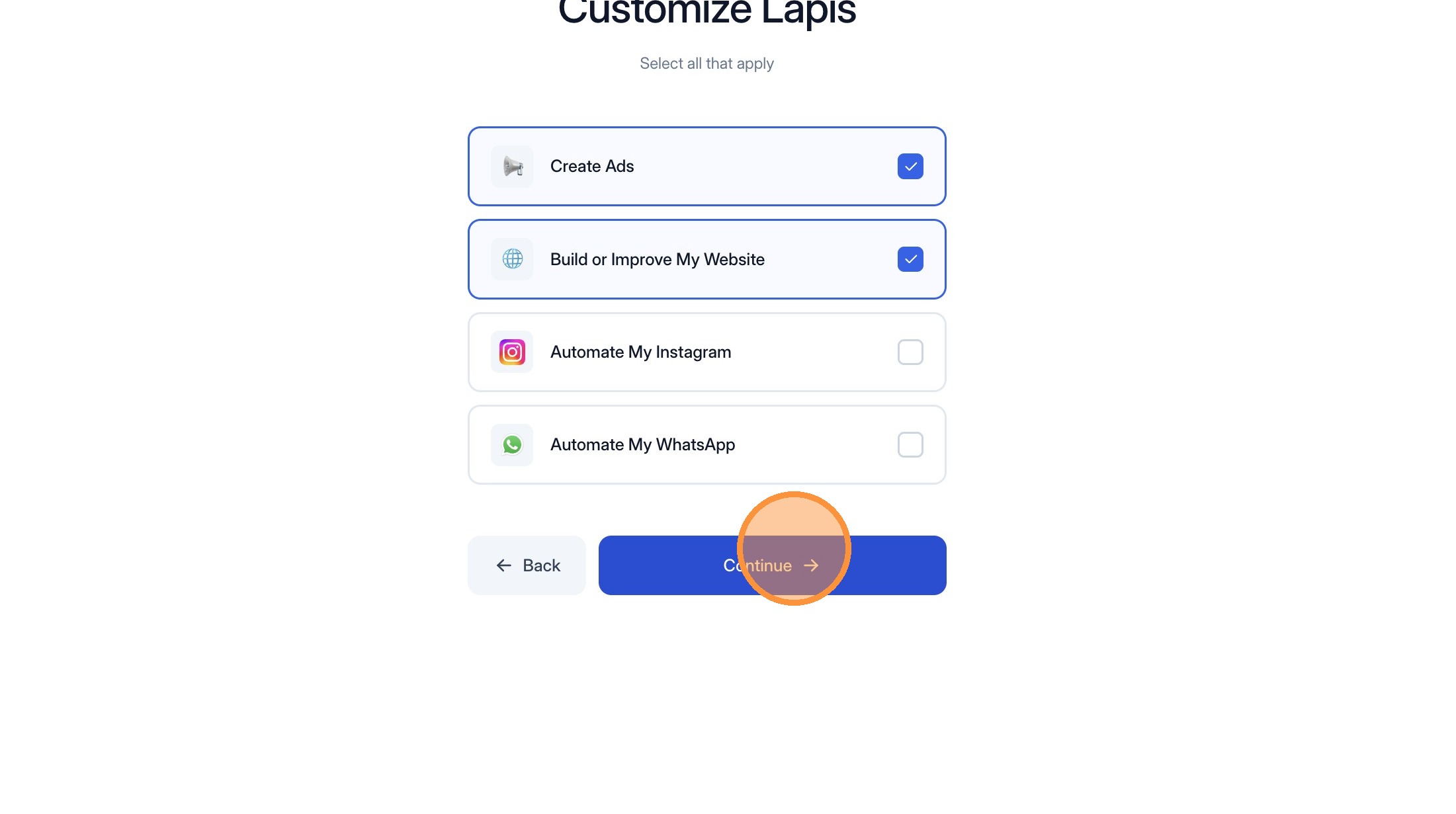
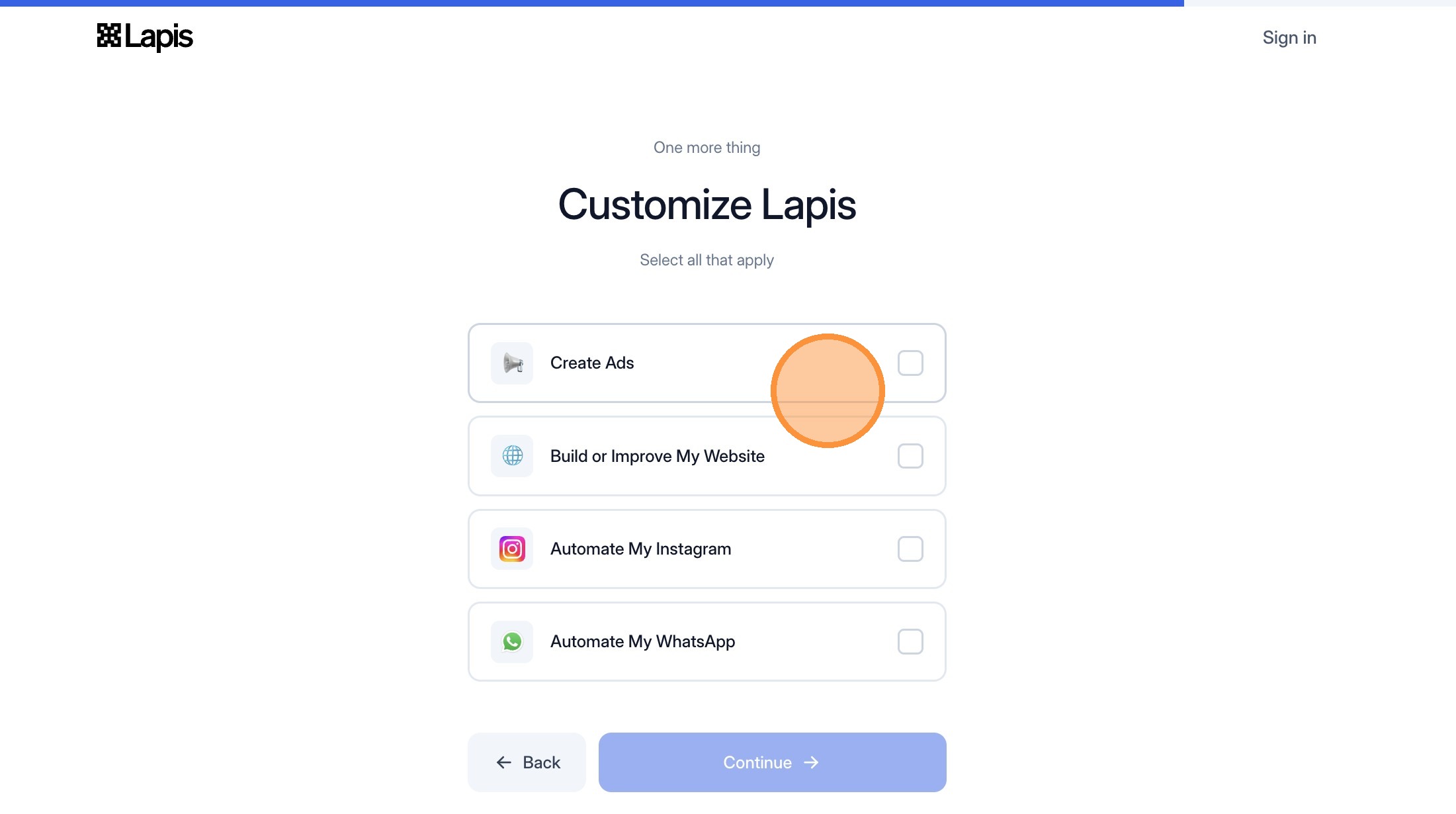
Tell us why you're interested in Lapis by selecting one of the options. This helps make our product better for you!
Select your interest
14
Click "Continue"
Click Continue
15
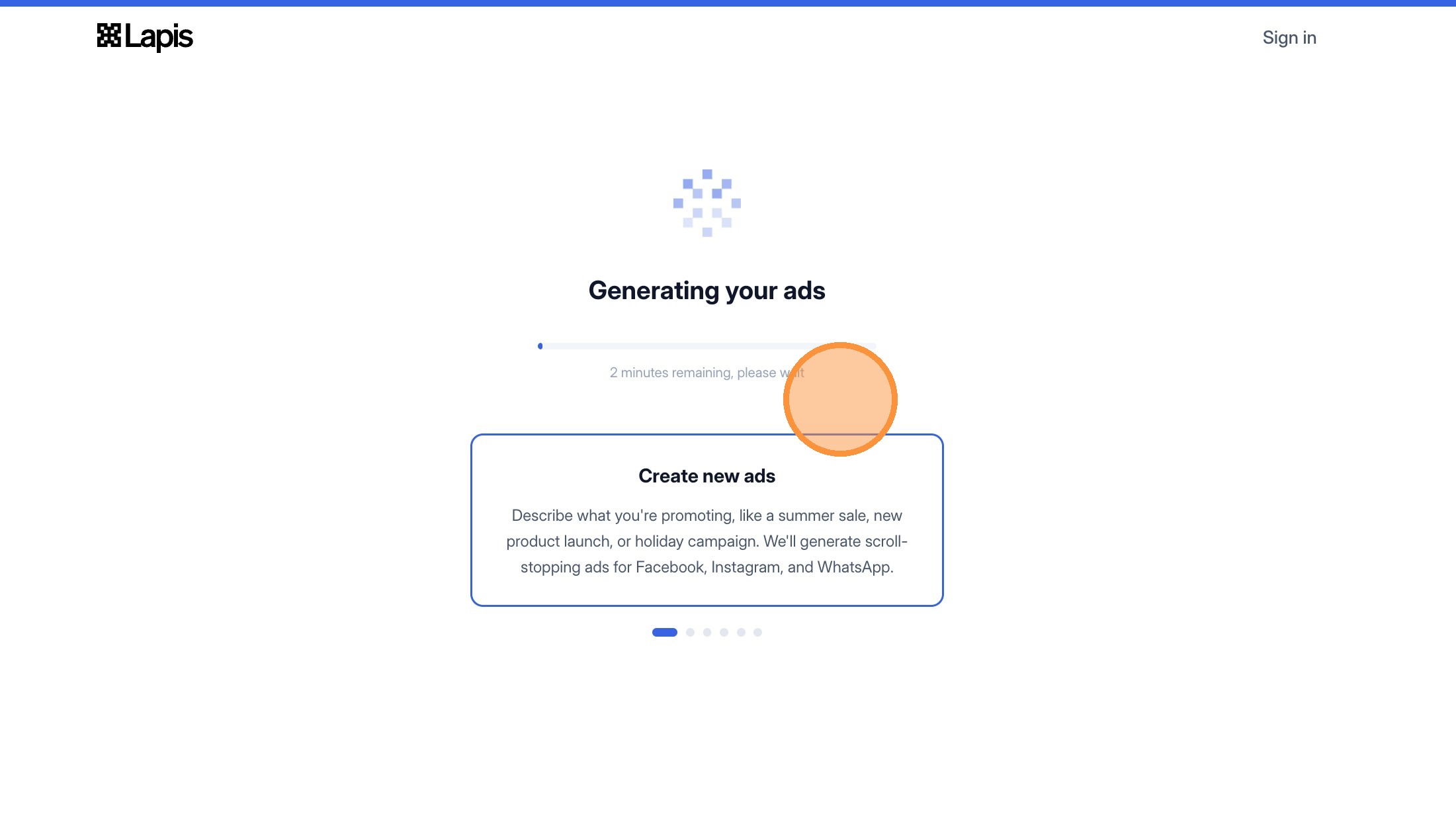
If you have a website and a logo, it takes about 2 minutes to generate ads based off of the images you provide.
Generating ads
16
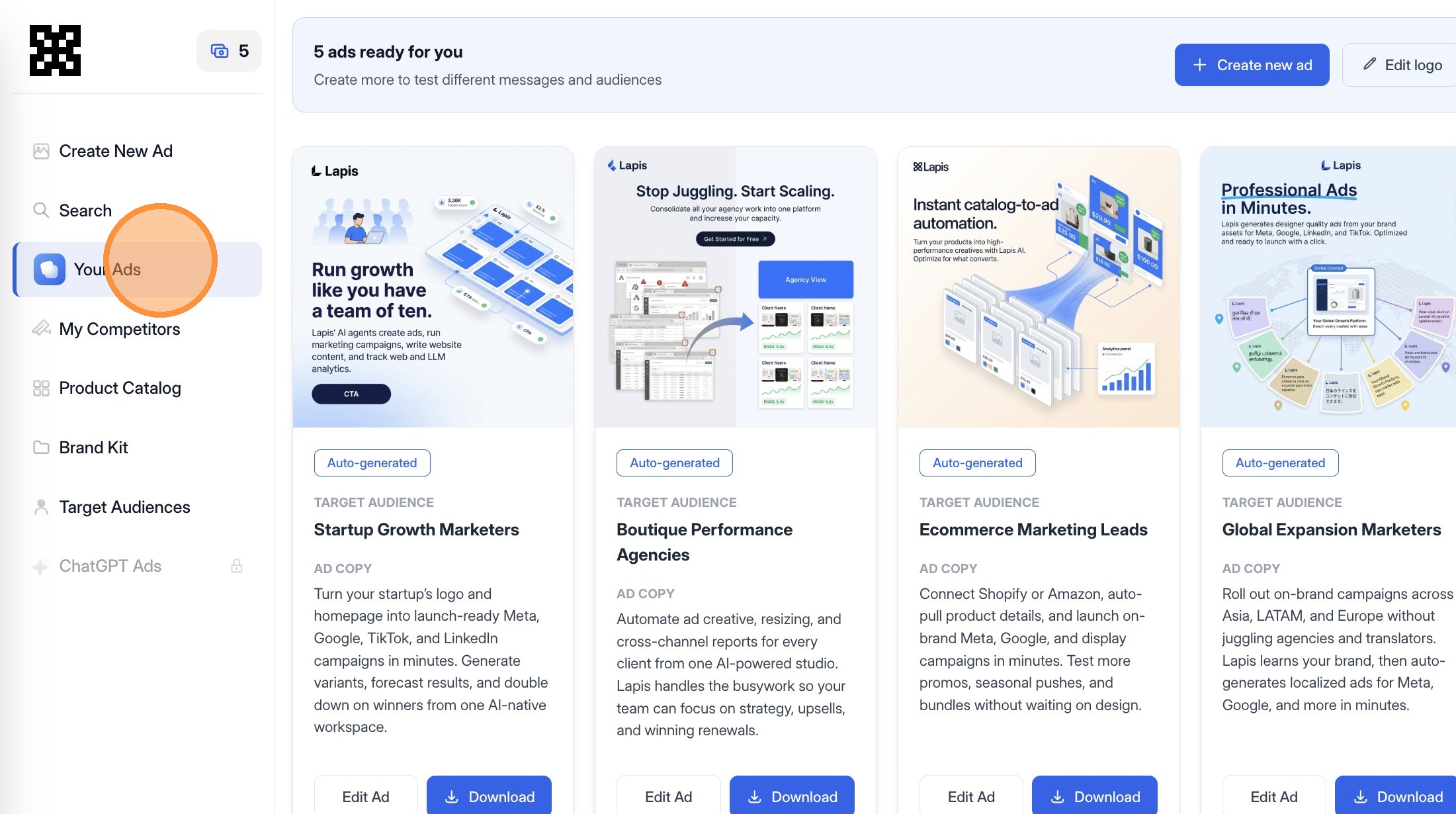
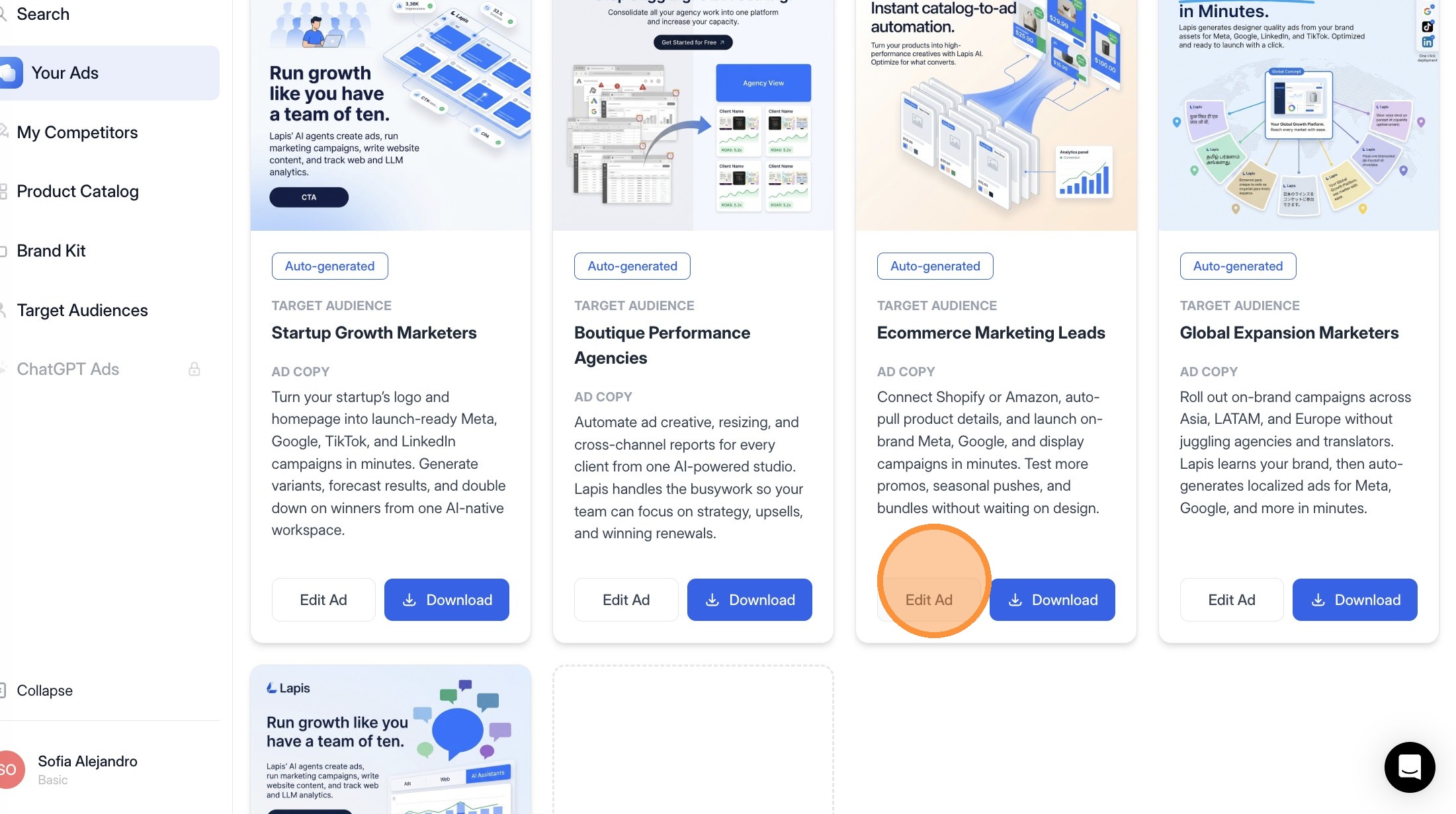
You've made it in! You can now see the free ads we've generated you. You're now able to go into "Edit Ad" if you want changes to be made or press "download" if you're happy with the way things are.
View generated ads
Tip
After generation, you'll be taken to Your Ads, where all the ads we've just created for you are displayed. Here, you can:
  • Scroll through generated variations
  • Compare creatives across platforms
  • Select individual ads for editing

Each ad is fully editable, allowing you to refine messaging, visuals, or structure before exporting.
17
For this example, we're selecting one of the ads it generated and clicking "Edit Ad".
Select an ad to edit

Edit an Ad Using Natural Language

Tip
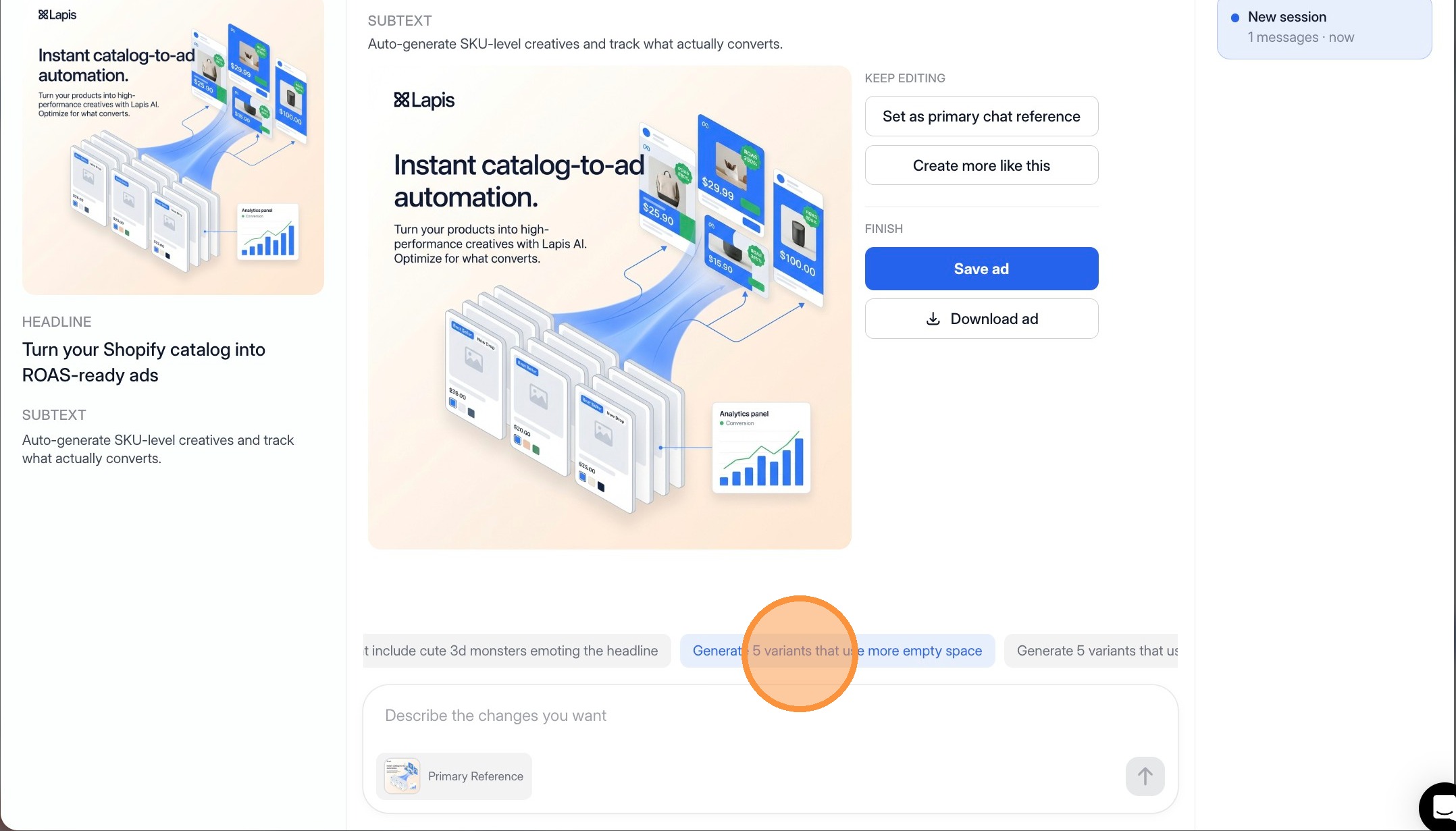
Select an ad to open the editor. Unlike traditional design tools, Lapis lets you edit ads using plain language instructions. For example:
  • "Make the headline more direct"
  • "Generate 5 variants that use more empty space"
  • "Change this to feel more premium"
  • "Emphasize speed and ease of use"

Lapis interprets these instructions and updates the ad accordingly, removing the need for manual design or copywriting work.

This makes designing ads fast and accessible, even for non-designers.
18
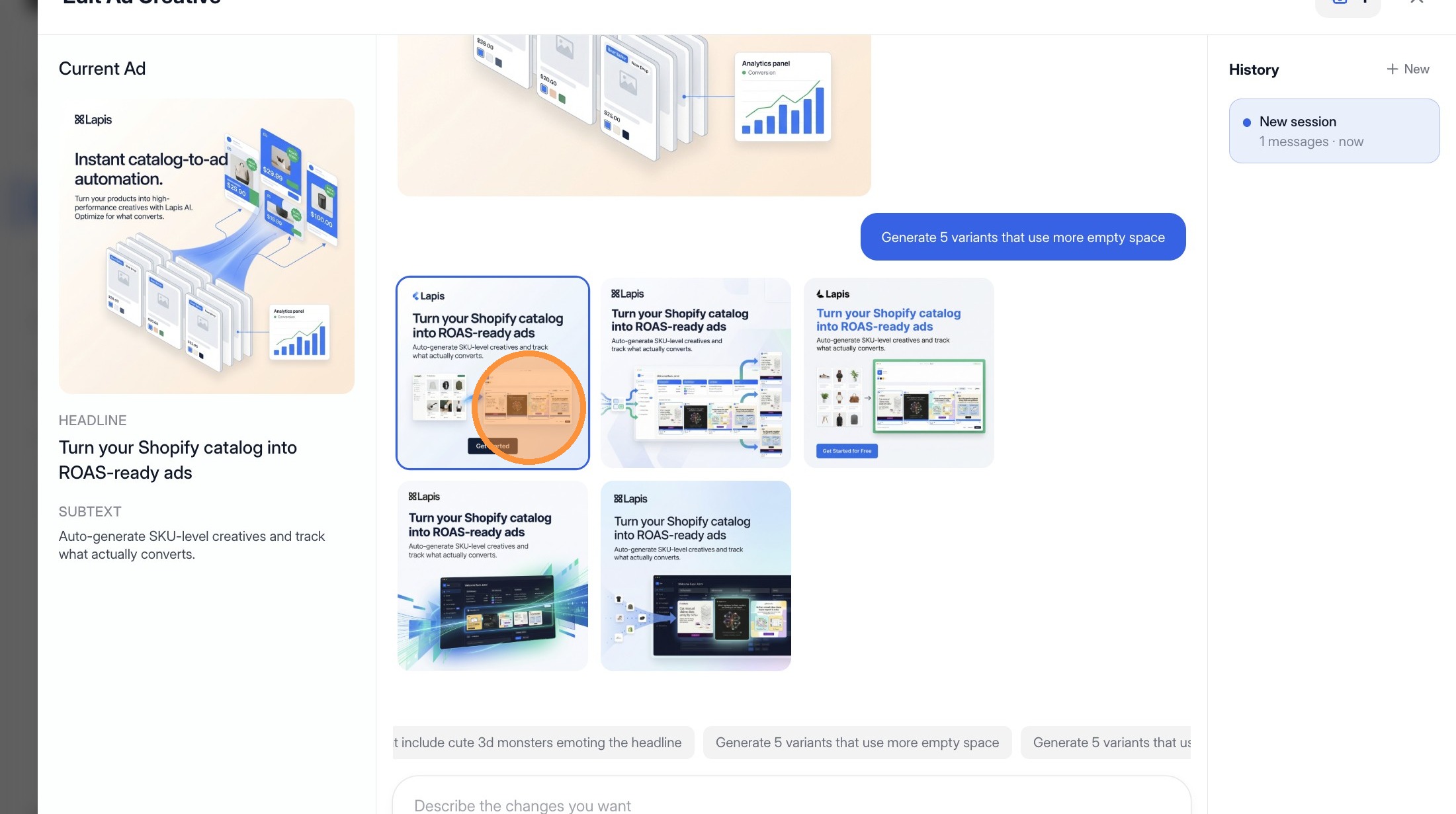
Click "Generate 5 variants that use more empty space"
Generate variants with natural language
Tip
To explore alternatives, click on any of the prompts that are above the text box. Lapis will create multiple new versions of the selected ad while keeping:
  • The same core message
  • Brand consistency
  • Platform constraints

Variants are useful for:

  • A/B testing
  • Exploring different tones or hooks
  • Giving performance teams more creative options

You can generate variants repeatedly without starting over.
19
Click on an image to select it.
Select an image
20
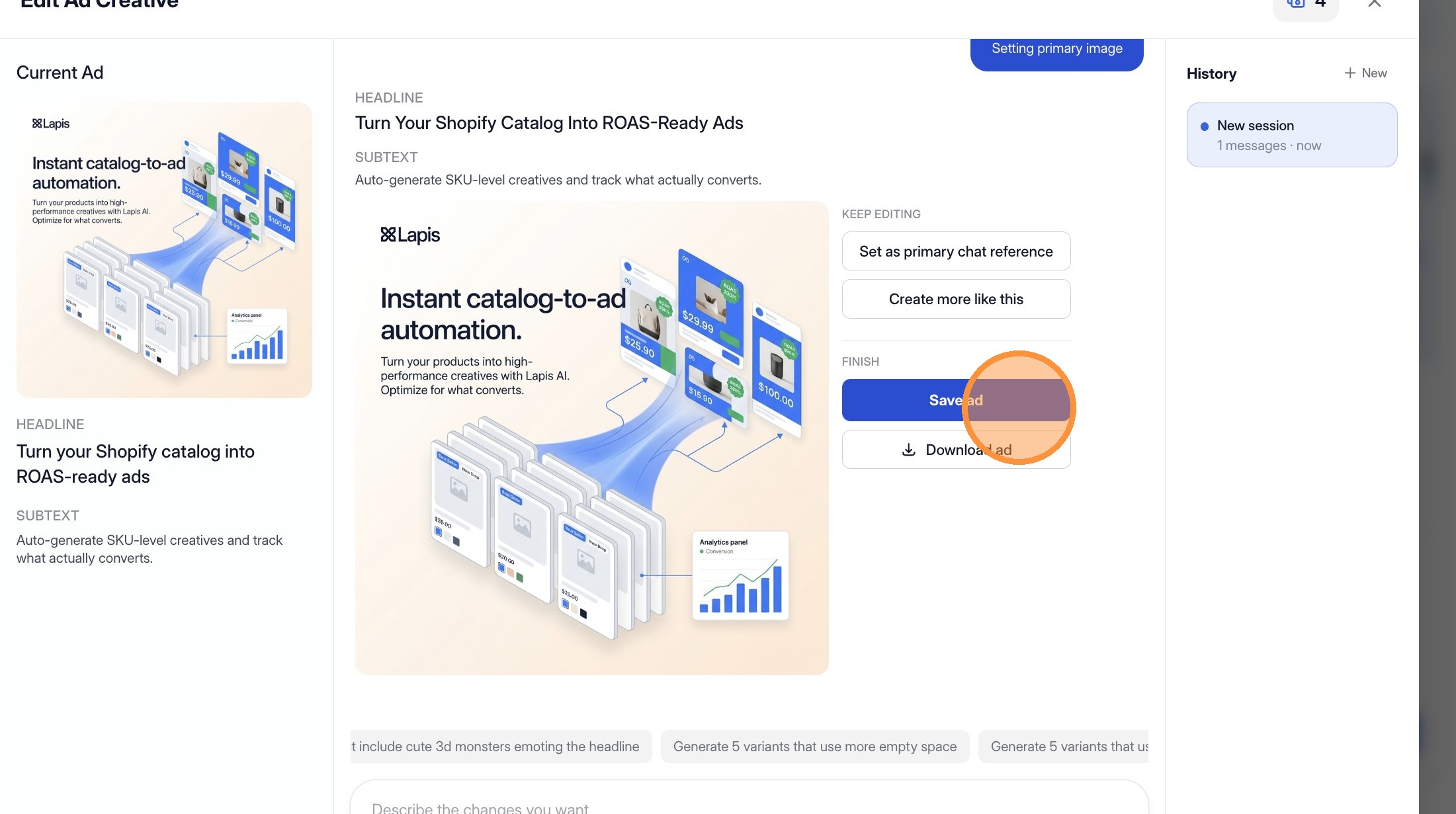
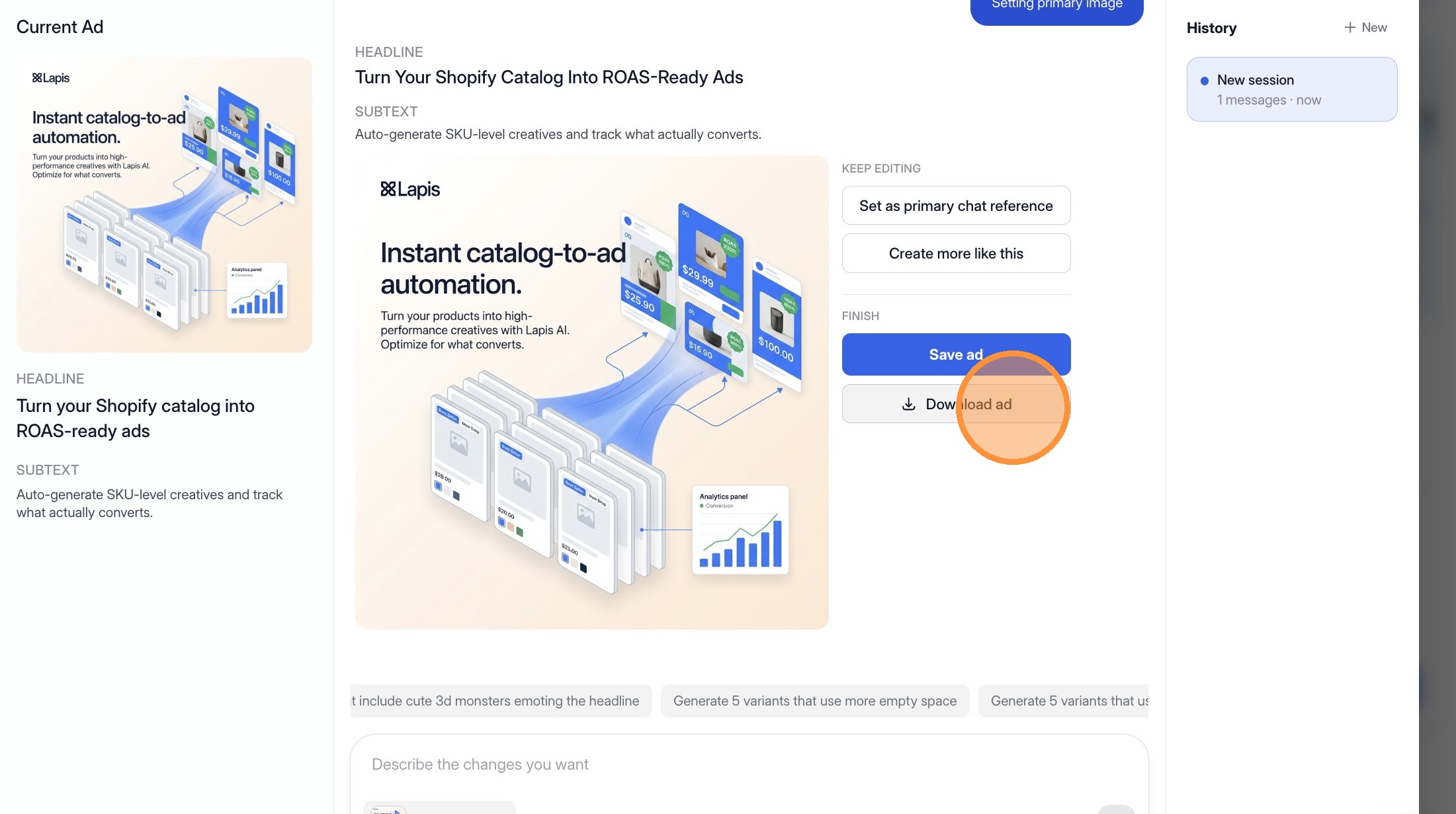
Click "Save ad"
Save the ad
Tip
Once you're satisfied with an ad, save it to your library. You can then export creatives in formats ready for upload to your chosen ad platforms. Each export respects platform-specific requirements, reducing errors during launch.

Saved ads remain accessible for future edits, reuse, or iteration as campaigns evolve.
21
Click "Download ad"
Download the ad
Tip
Satisfied with the ad you've generated? Click "Download"!

This is your ready to use output for trafficking into ad managers, sharing with stakeholders, or adding to a creative library. Before downloading multiple times, confirm you're downloading the right variant.

Try Lapis free.

Create designer quality, on-brand ads using AI.

Start for free