Access Your Ads
Tip
From the homepage or main navigation, click Ads Studio to access your existing ads and editing tools. This is where campaigns are created, stored, and refined.
Treat this workspace as your iterative creative environment — every saved ad can become the starting point for future variants.
1
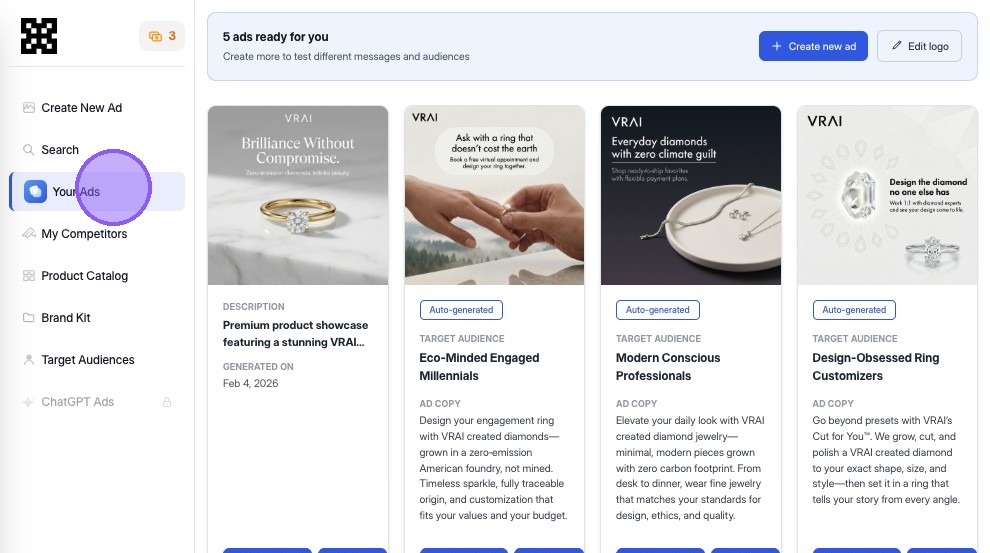
Click "Your Ads" to view all creatives you have generated or saved in Ads Studio.
2
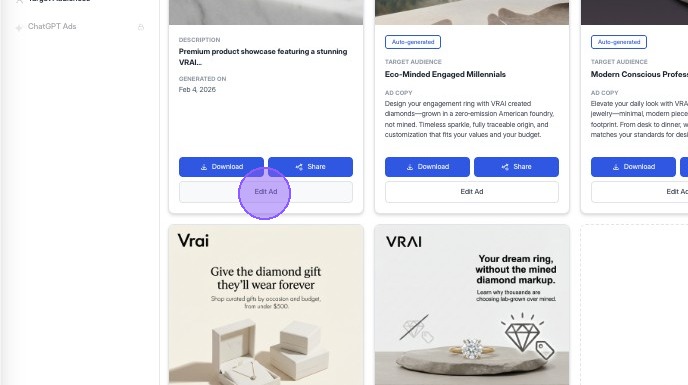
Locate the ad you want to edit. Browse or search your library to find the creative you want to refine.
Tip
Select the ad you want to modify from your list of generated creatives. In Ads Studio, you'll see all previously generated ads. Scroll or search to find the one you want to improve or tailor. From here, click "Edit Ad" to open the chat interface for editing that specific ad.
Variant Tip: Start editing creatives that already communicate your value proposition clearly — iterating from strong baselines typically produces better variants.
Understand the Editing Interface
3
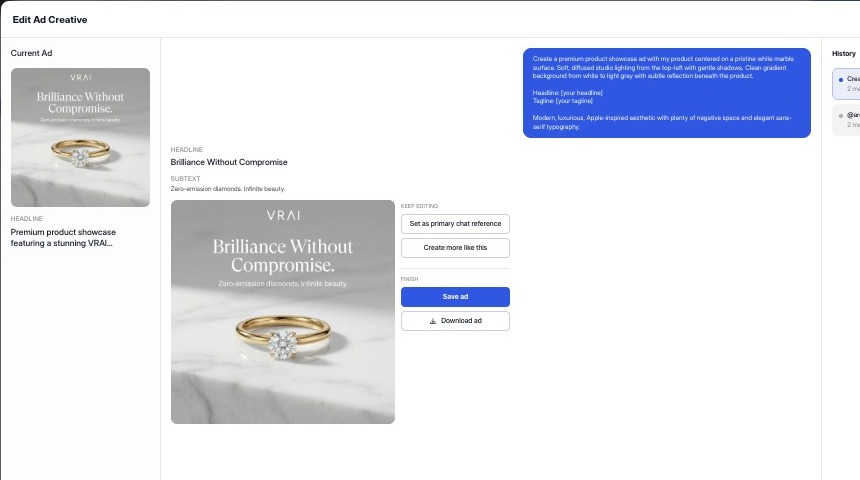
Familiarize yourself with the ad editing layout, including headline, text, image areas, and prompt box.
Tip
The Lapis editor shows:
- The ad preview (layout + visual + text)
- Copy fields (headline, body text, CTA)
- A prompt box where you can describe changes in plain language
This hybrid interface blends visual editing and AI-driven prompts.
Edit with Natural Language
4
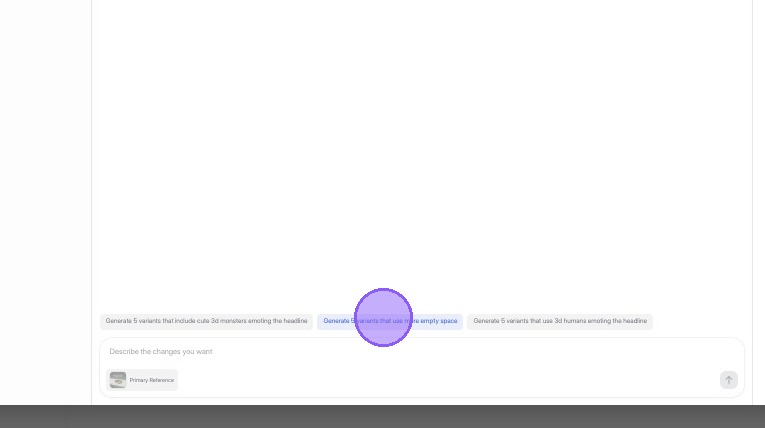
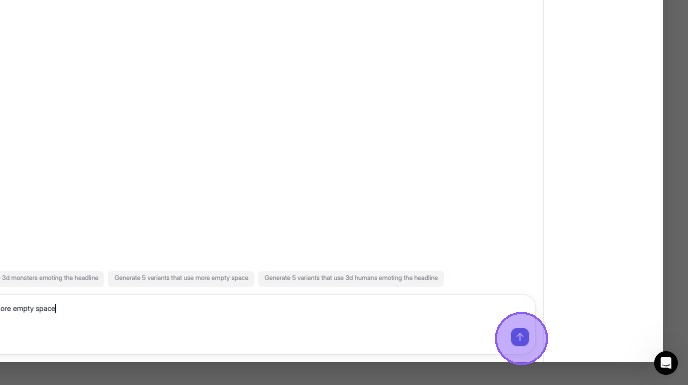
Scroll to the bottom of the chat and you'll see a chat window which allows you to use natural language to prompt what changes you want to see. For the purposes of this tutorial, we'll select "Generate 5 variants that use more empty space".
5
Press the arrow key to submit your changes.
6
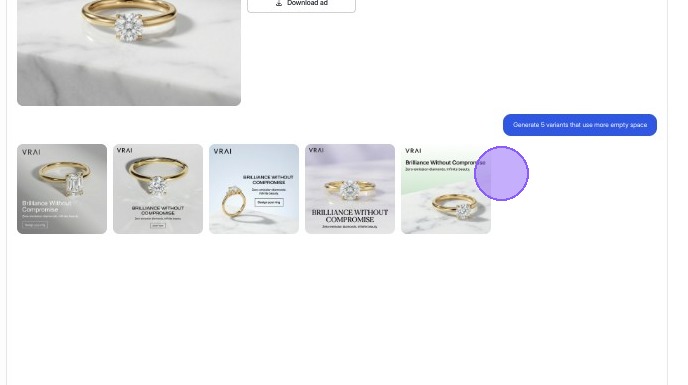
Now you'll be able to see the ads generated based off of the pre-selected prompt. This preview shows how the copy and visuals have shifted based on your input.
Refine and Save
7
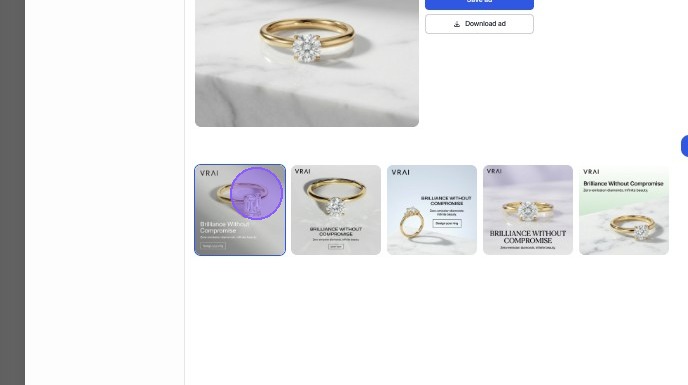
Click into any of the images to inspect them further.
8
Click the image you want to work with.
9
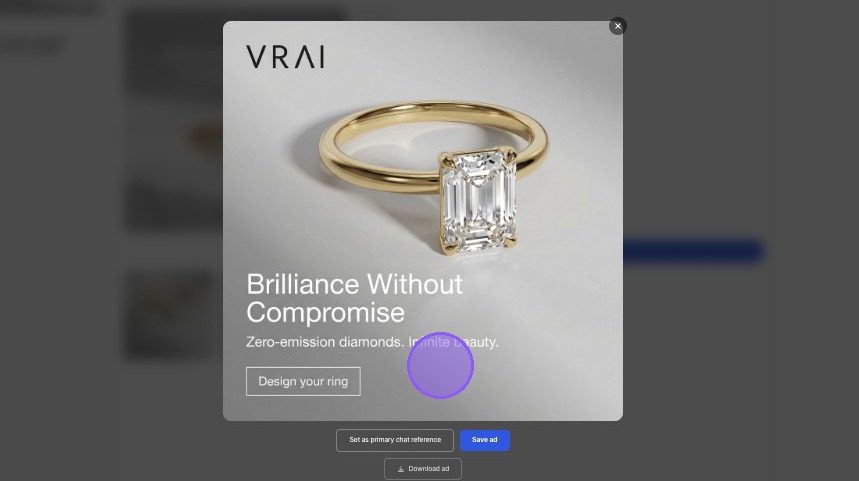
This ad is really great, but it's not quite perfect. From here, you can select "Set as primary chat reference" to refine this further in the editor.
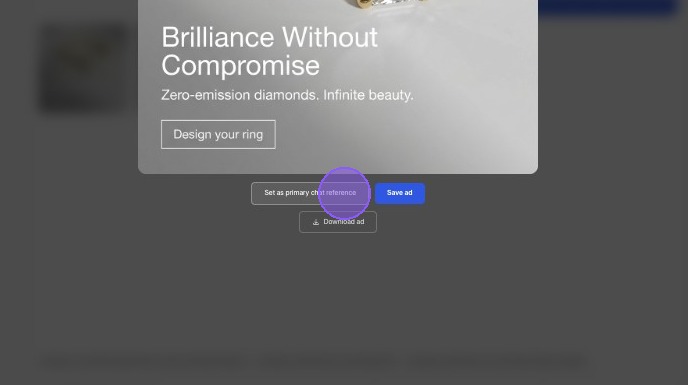
10
Click "Save ad"
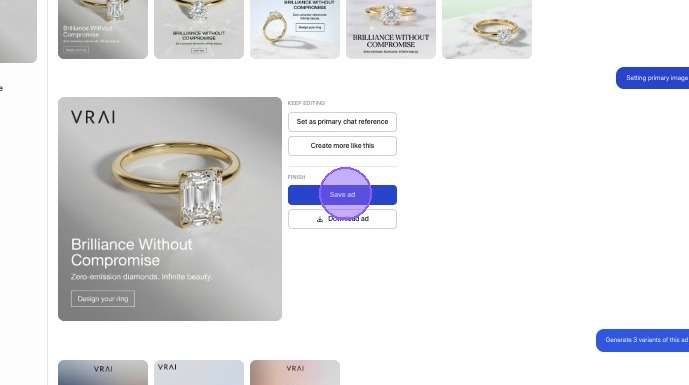
11
Click "Download ad"
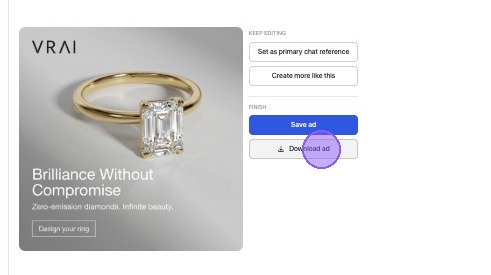
Tip
Once you're satisfied with an ad, save it to your library. You can then export creatives in formats ready for upload to your chosen ad platforms. Saved ads remain accessible for future edits, reuse, or iteration as campaigns evolve.